
Notifications & Preferences#
Notifications help you stay informed about activity in your courses. You can view notifications while on the platform or receive them by email, depending on your preferences.
Where Notifications Appear#
Notification Tray#
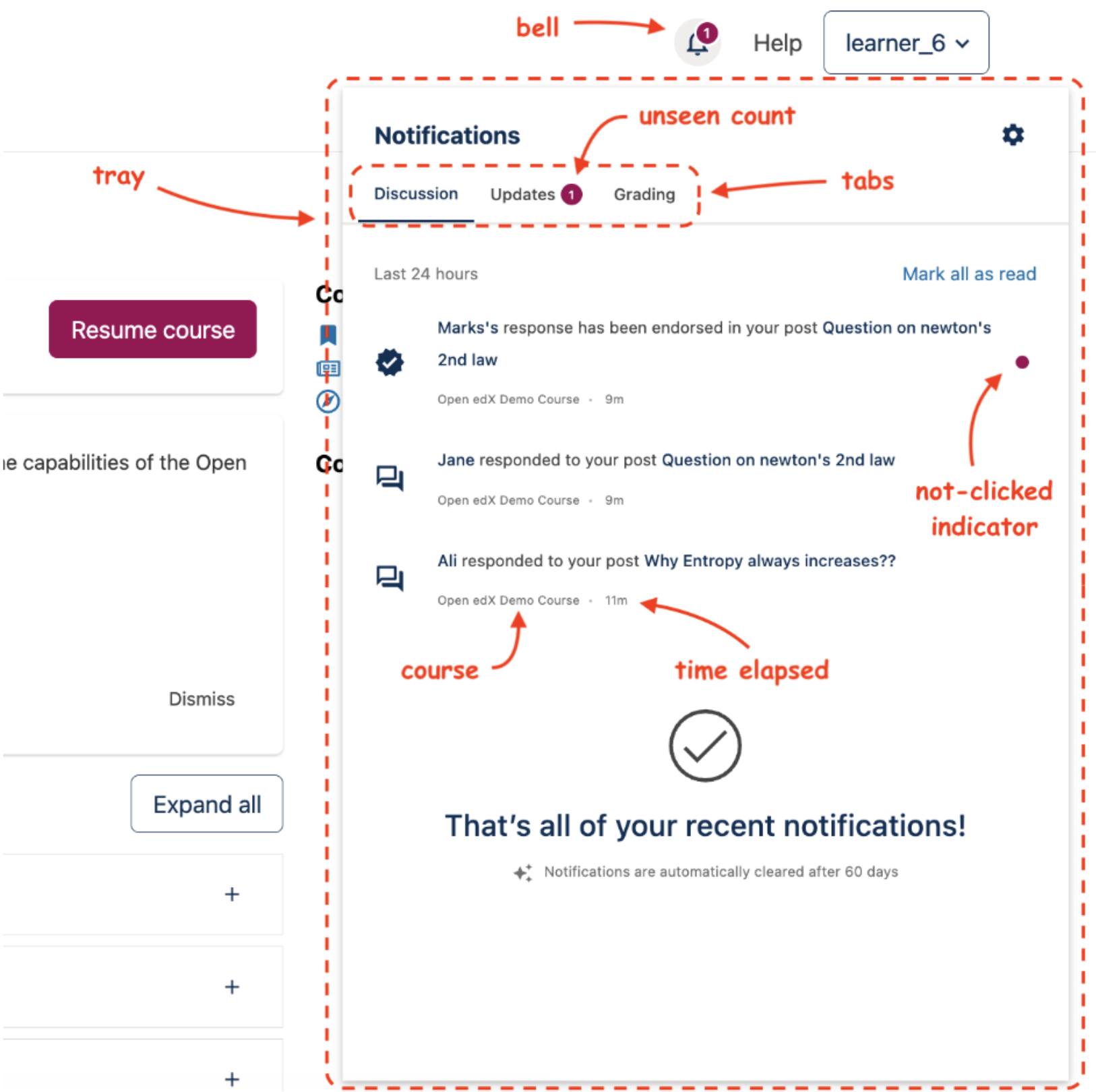
Clicking the bell icon on top right opens the notifications tray. Next to bell icon is the count of unseen notifications.#
The notification tray keeps you updated while you’re browsing the site.
Clicking the bell icon on top right opens the notifications tray with tabs such as Discussions, Updates and Grading.
Each notification shows the course it belongs to, time elapsed since it was created and a red dot that indicates that it has not been clicked.
A gear icon in the tray takes you directly to your notification preferences on Account Settings page.
If you have more notifications than can fit in the tray, a “Load more” button appears at the bottom. Clicking it loads mores notifications at the bottom.
Email Notifications#
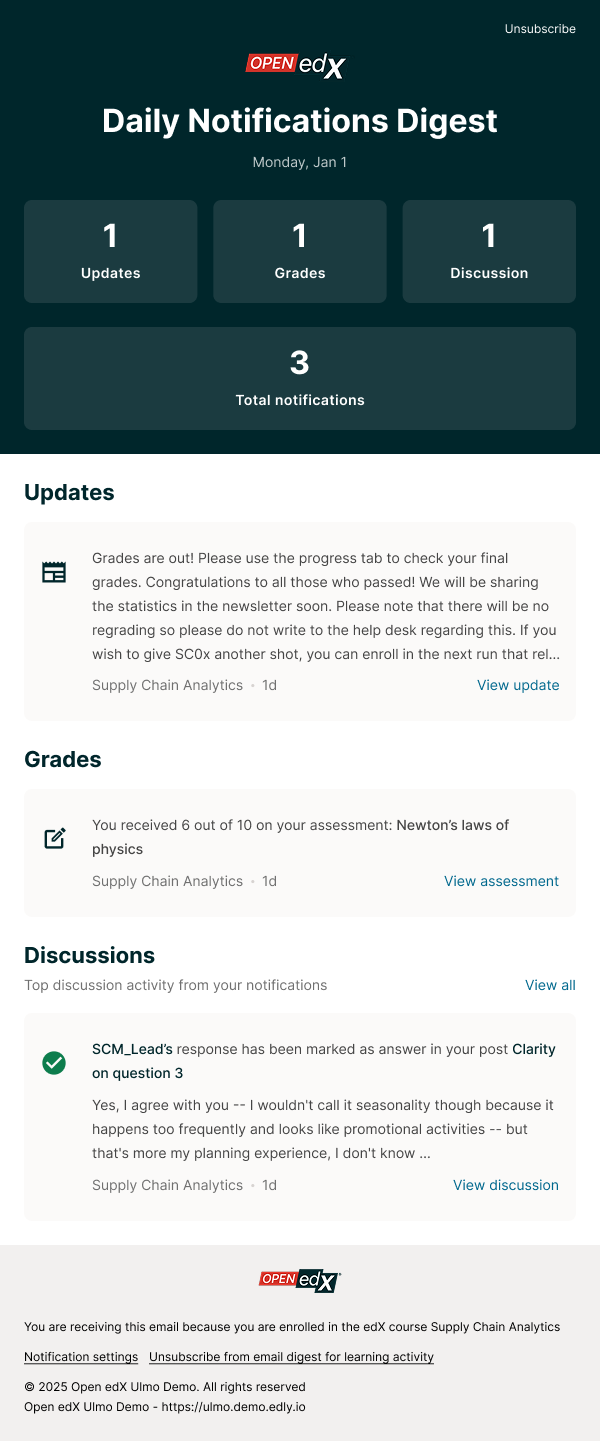
Screenshot of email containing daily summary of notifications from the past 24hrs.#
Notification emails keep you informed when you are away from the platform. You can choose to get notified immediately or receive a daily or weekly summary of notifications.
Immediately: Receive the email notification as soon as the activity happens.
Daily: Receive a summary of notifications from the past 24 hours.
Weekly: Receive a summary of notifications from the past 7 days.
Email summary contains up to 5 notifications for each platform area (Discussions, Updates, Grading). Click the “View more” button to the see rest in the notifications tray on the website.
Emails include a one-click unsubscribe option to turn off email notifications for all activity types.
Activity Types#
Activities for which you may be notified for, depending on your preferences, are listed in the table below.
# |
Area |
Activity |
Preference name |
Tray default |
Email default |
|---|---|---|---|---|---|
1 |
Discussions |
All activity on posts and responses that you’ve authored or you are following |
Activity notifications |
ON |
Daily |
2 |
Discussions |
Someone reported a post, response or comment |
Reported content |
ON |
Daily |
3 |
Discussions |
Any new discussion post |
New discussion posts |
OFF |
OFF |
4 |
Discussions |
Any new question post |
New question posts |
OFF |
OFF |
5 |
Discussions |
Your instructor created a post and chose to notify everyone |
New posts from instructors |
ON |
Daily |
6 |
Updates |
Instructor created a course update |
Course updates |
ON |
Daily |
7 |
Grading |
You received a grade on your essay (ORA) submission |
ORA grade received |
ON |
Daily |
8 |
Grading |
A submission made for an essay (ORA) that requires staff grading |
New ORA submission for staff grading |
ON |
Daily |
Managing Preferences#
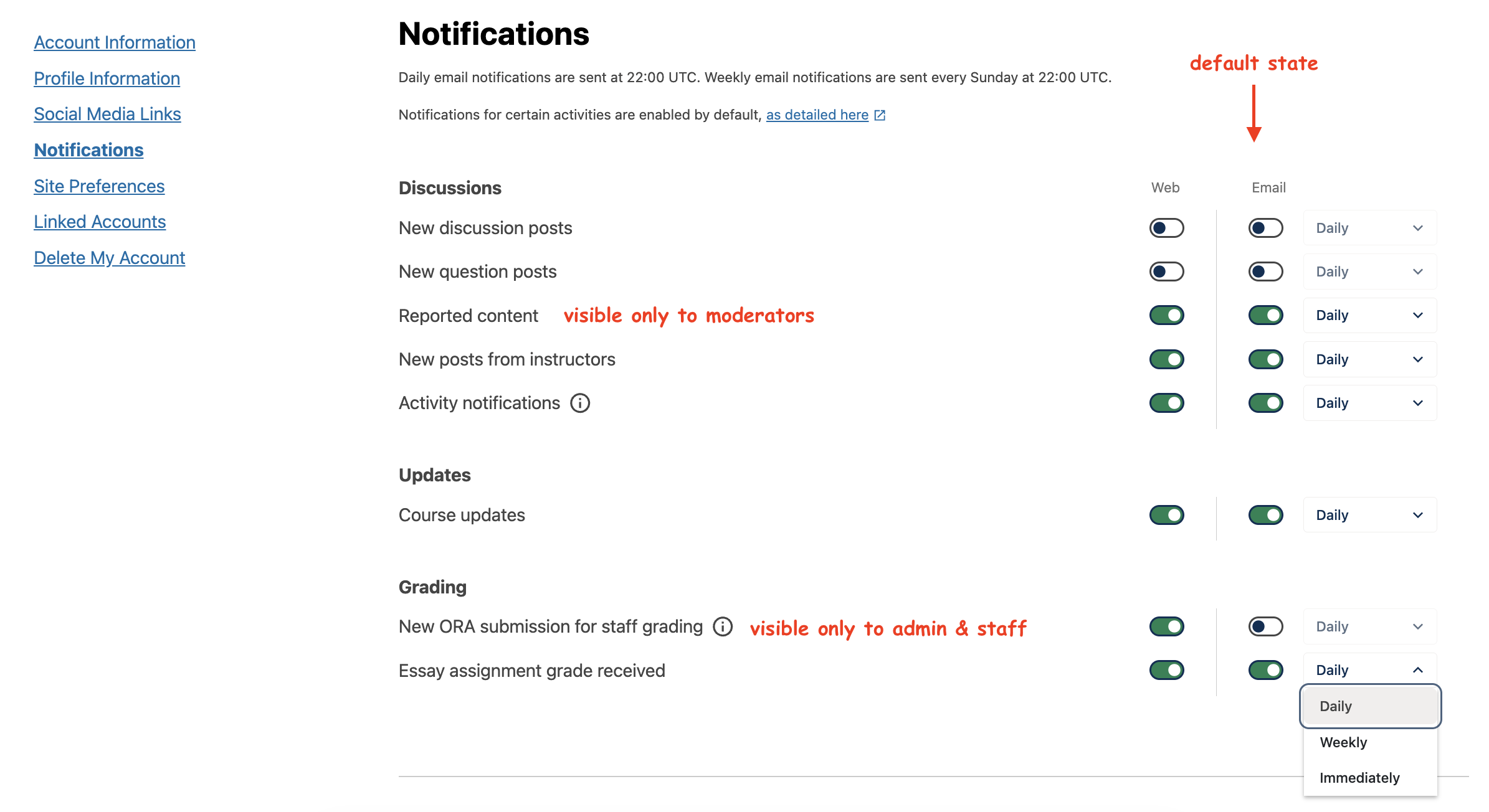
You can manage notification preference on Account Settings page.#
Notification preferences allow you to control which notifications you receive, how often, and through which channel. You can get to the preferences page via:
The Notifications section on the Account Settings page.
The gear icon in the top-right corner of the notification tray.
The Notification Settings link at the bottom of notifications in email.
For each preference, you can:
Turn tray notifications on or off.
Turn email notifications on or off.
Choose an email cadence: Immediate, Daily, or Weekly
Notifications Expiry#
Your site administrator may set a time limit for how long notifications remain available. Once they reach that age, they are automatically removed from your notification tray.
See also
Maintenance chart
Review Date |
Working Group Reviewer |
Release |
Test situation |
Dec 15, 2025 |
Aamir Ayub |
Ulmo |