
Migrate Legacy Libraries to the New Library Environment#
In Verawood, Legacy libraries will no longer be supported. They are being replaced with the new, fully-featured Library experience introduced in Sumac. The new feature allows you to create any type of content in a library - including content blocks, units, subsections and sections. All content can be reused across courses. To take full advantage of the new features, and to continue using the content in your Legacy Libraries, migrate your Legacy Libraries.
Migrate Legacy Libraries#
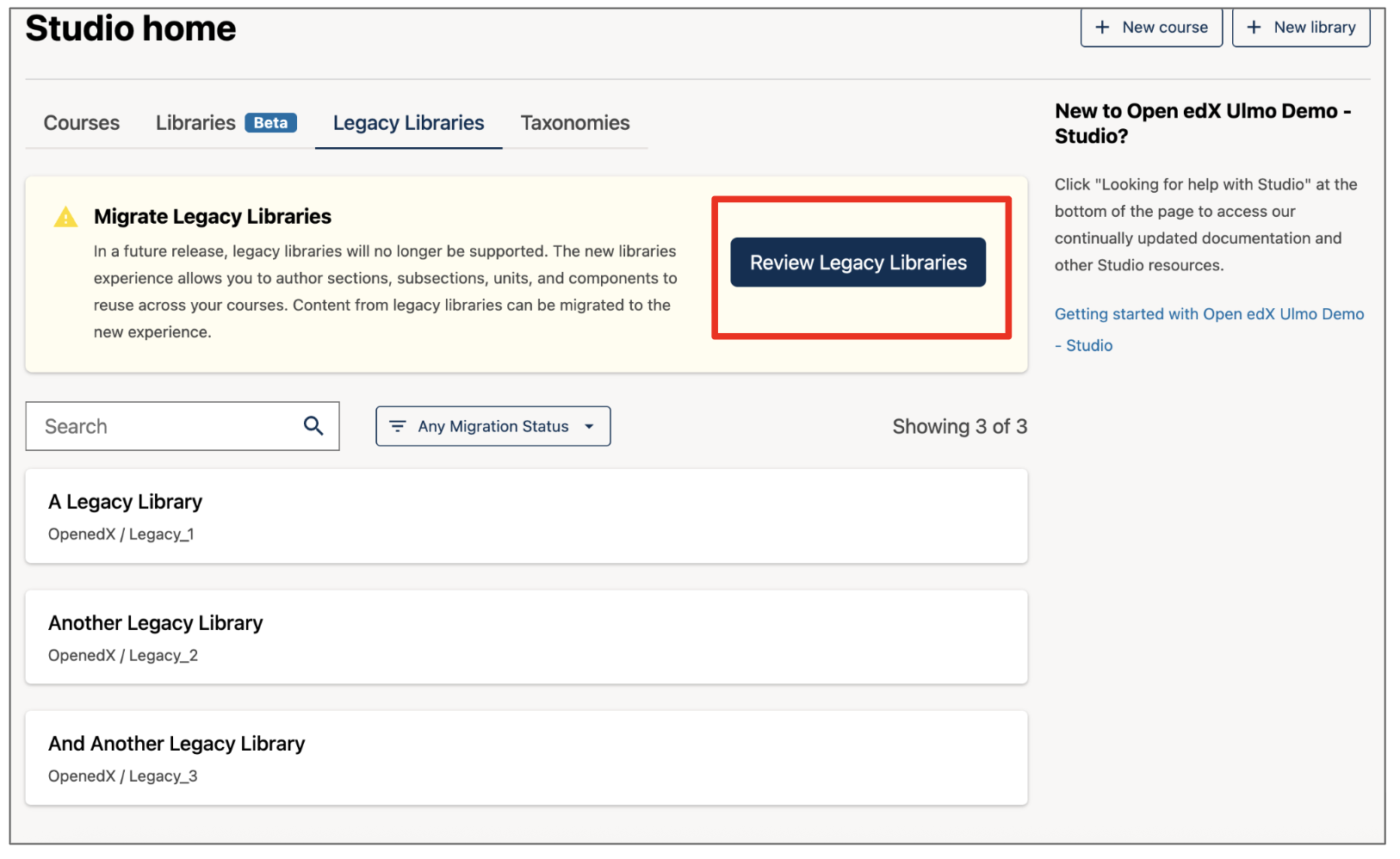
Click on the Legacy Libraries tab on Studio Home. You will see a button to Review Legacy Libraries.
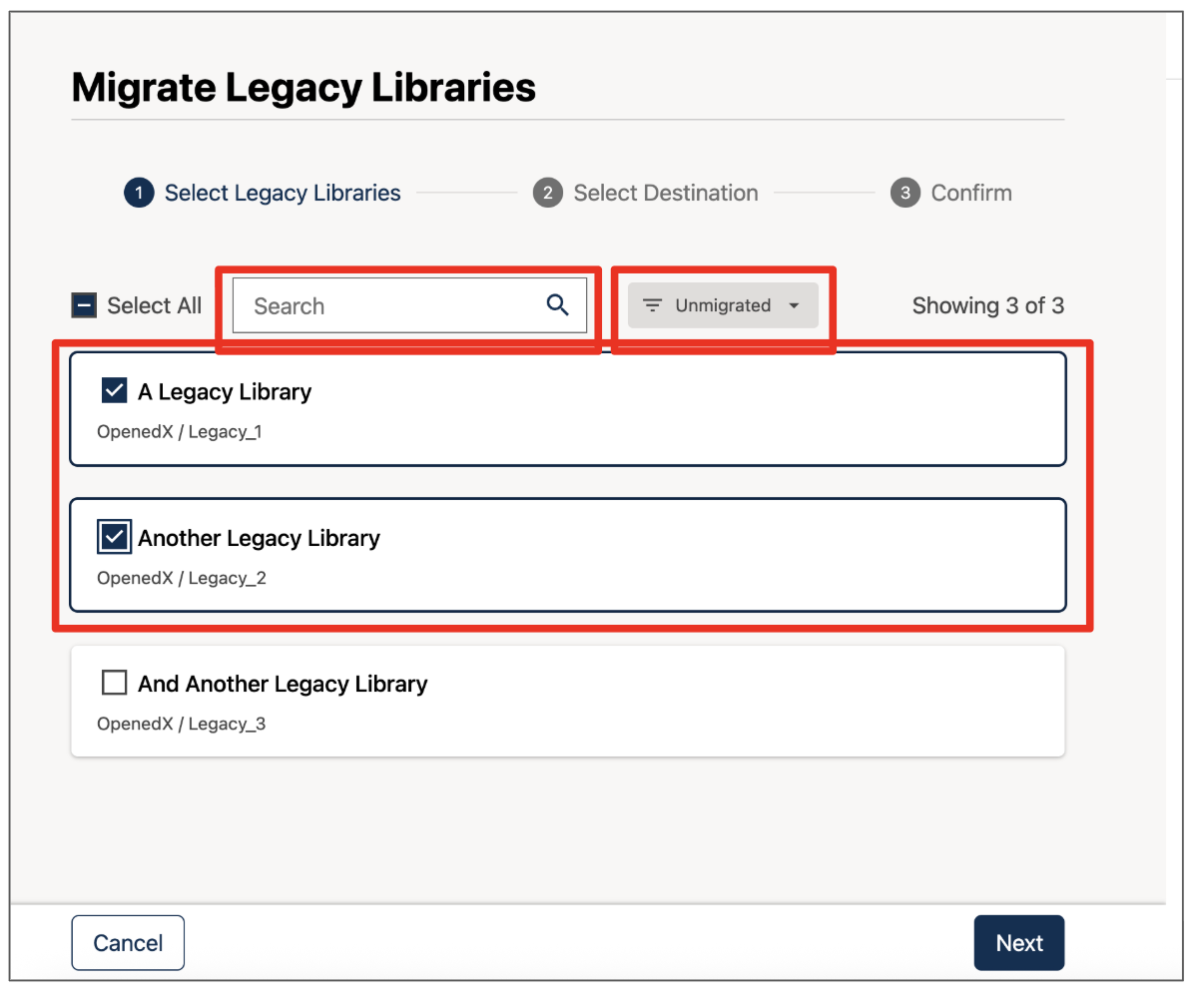
Select which Library you wish to migrate. Click the checkbox next to the Library title to select a Library. You may choose one Library at a time, or multiple Libraries at once.
Note
You can use the search bar to find libraries by keyword, or the filter to scope your view to unmigrated libraries.
Click Next.
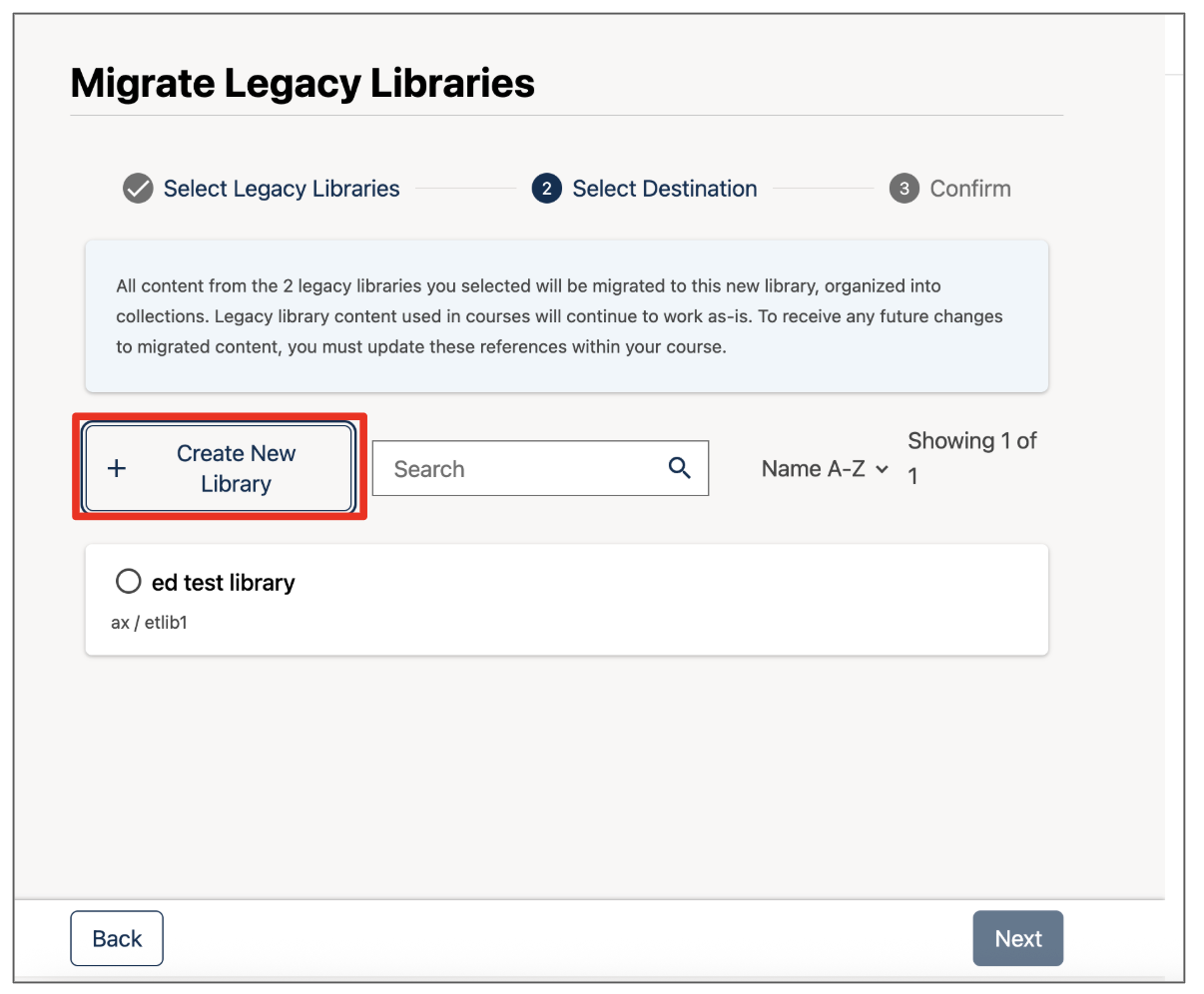
IF you wish to migrate your Legacy Library to a brand new Library, click + Create New Library.
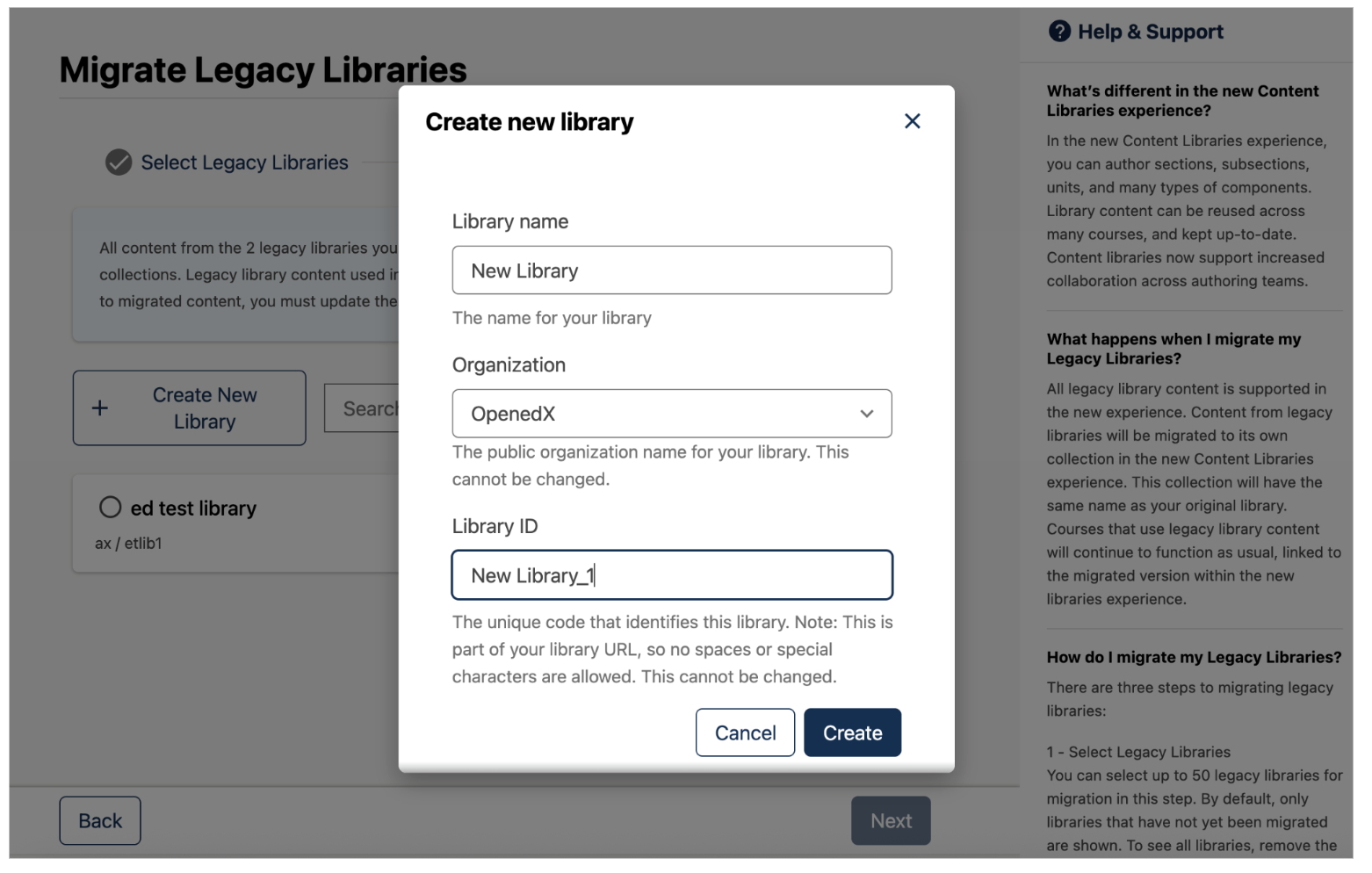
Provide the new Library a name, organization and ID and click Create, then click Next.
IF you wish to migrate your Legacy Library to an existing Library, click the radio button next to the title of the Library you wish to select and click Next.
Review the migration details and click Confirm.
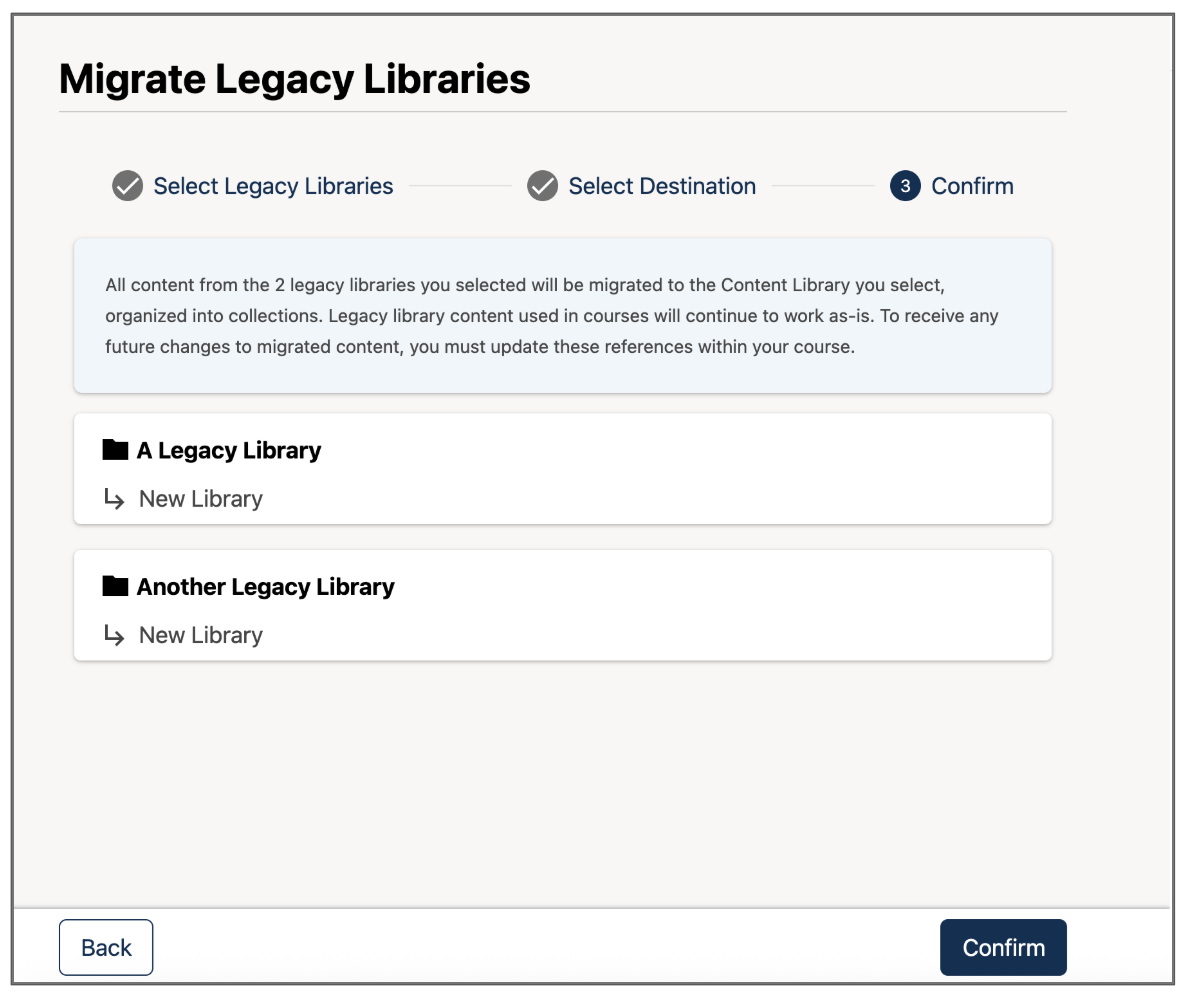
You will be redirected away from the Legacy Library environment to the new Library environment. Your Legacy content will now be populated in the new Library.
Navigate your new Library#
All of the content from your Legacy Library is viewable from the “All Content” tab. If you migrated more than one Legacy Library, all of the content from each Legacy Library can be viewed in aggregate.
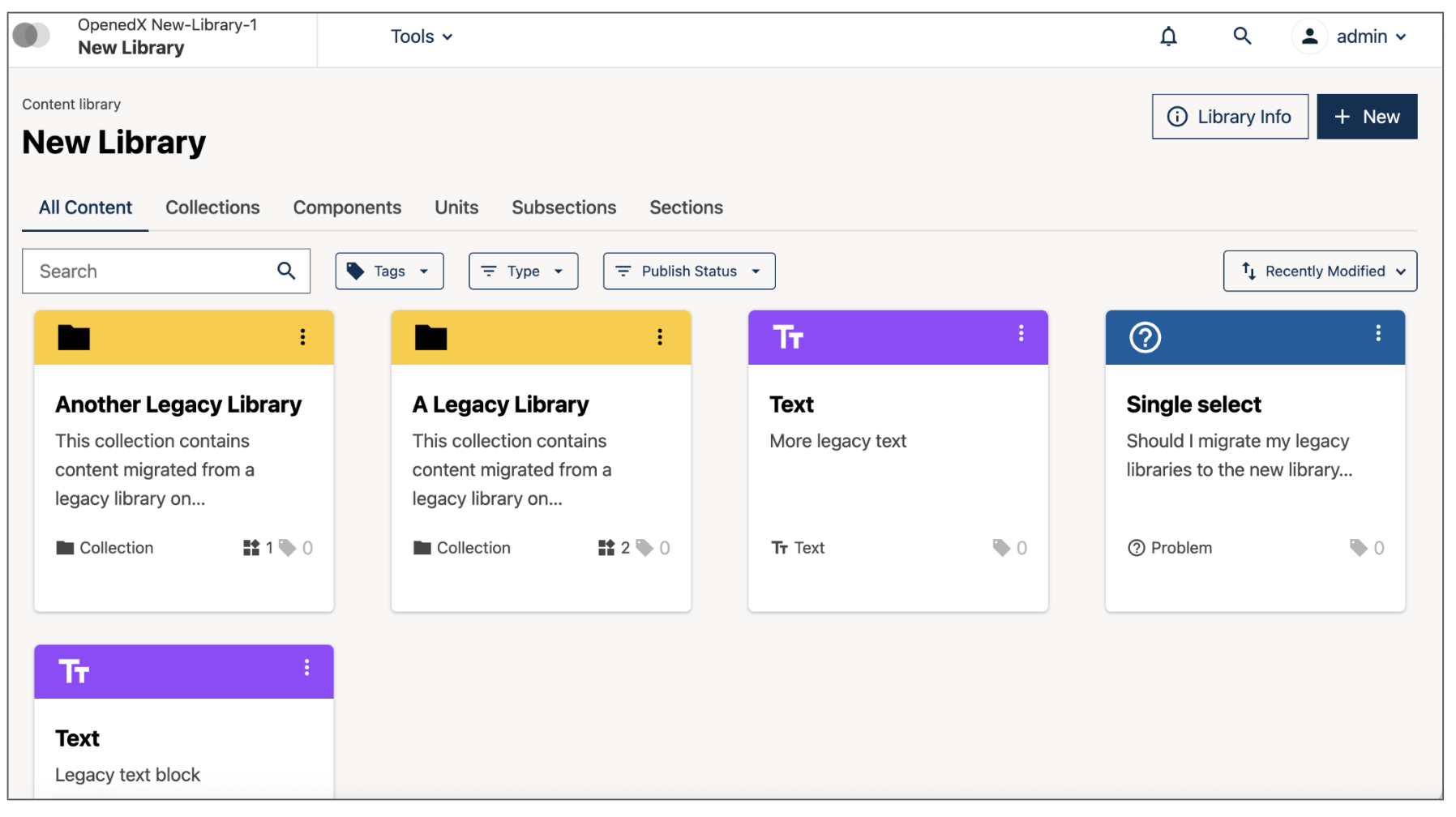
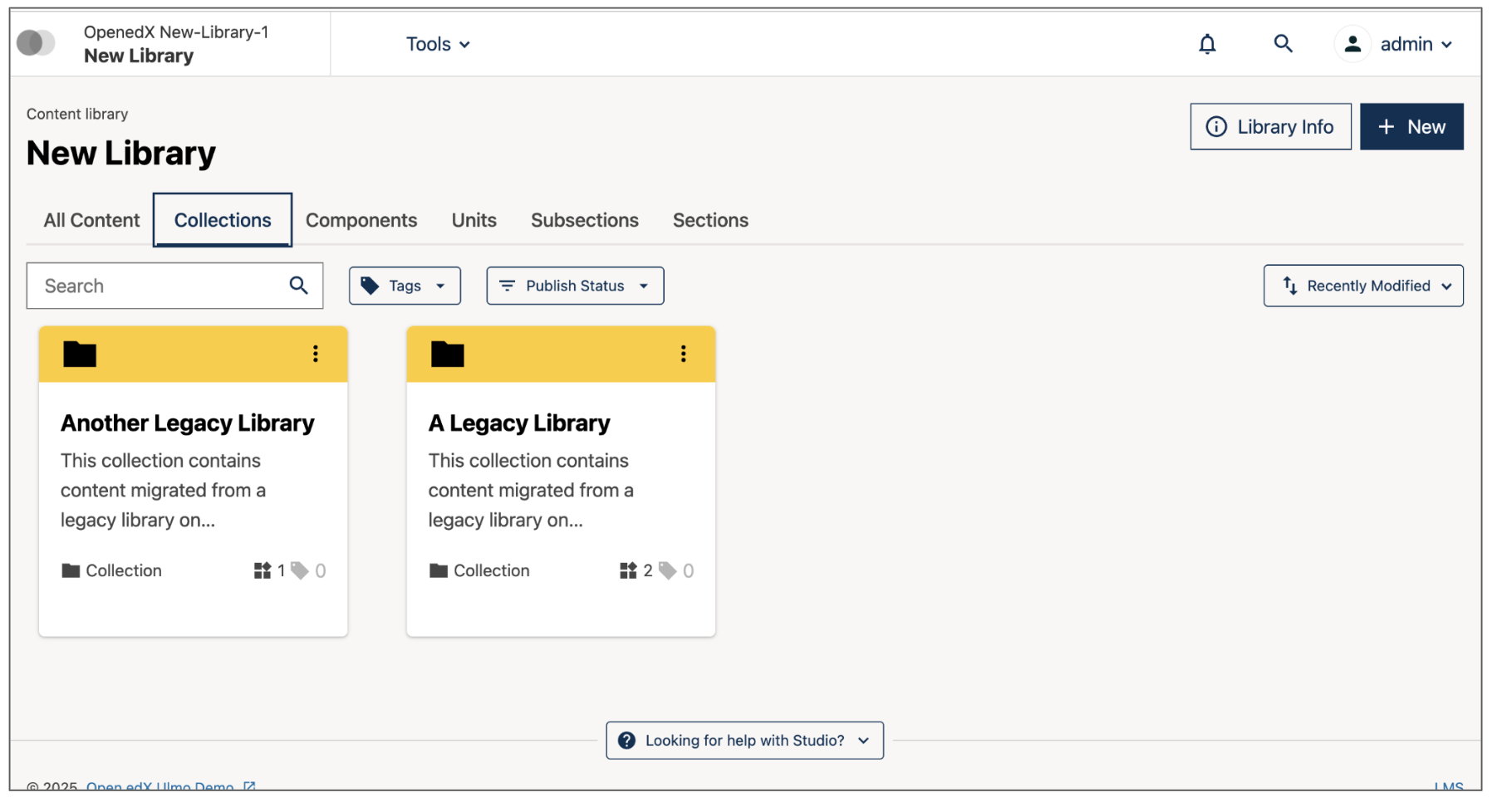
Each Legacy Library can also be viewed as a separate collection within the new Library. Click on the Collections tab to view each of your Legacy Libraries.
Publish Migrated Content
All migrated content is created in the “Draft” state in the new Library. It must be published in order to be reused in courses.
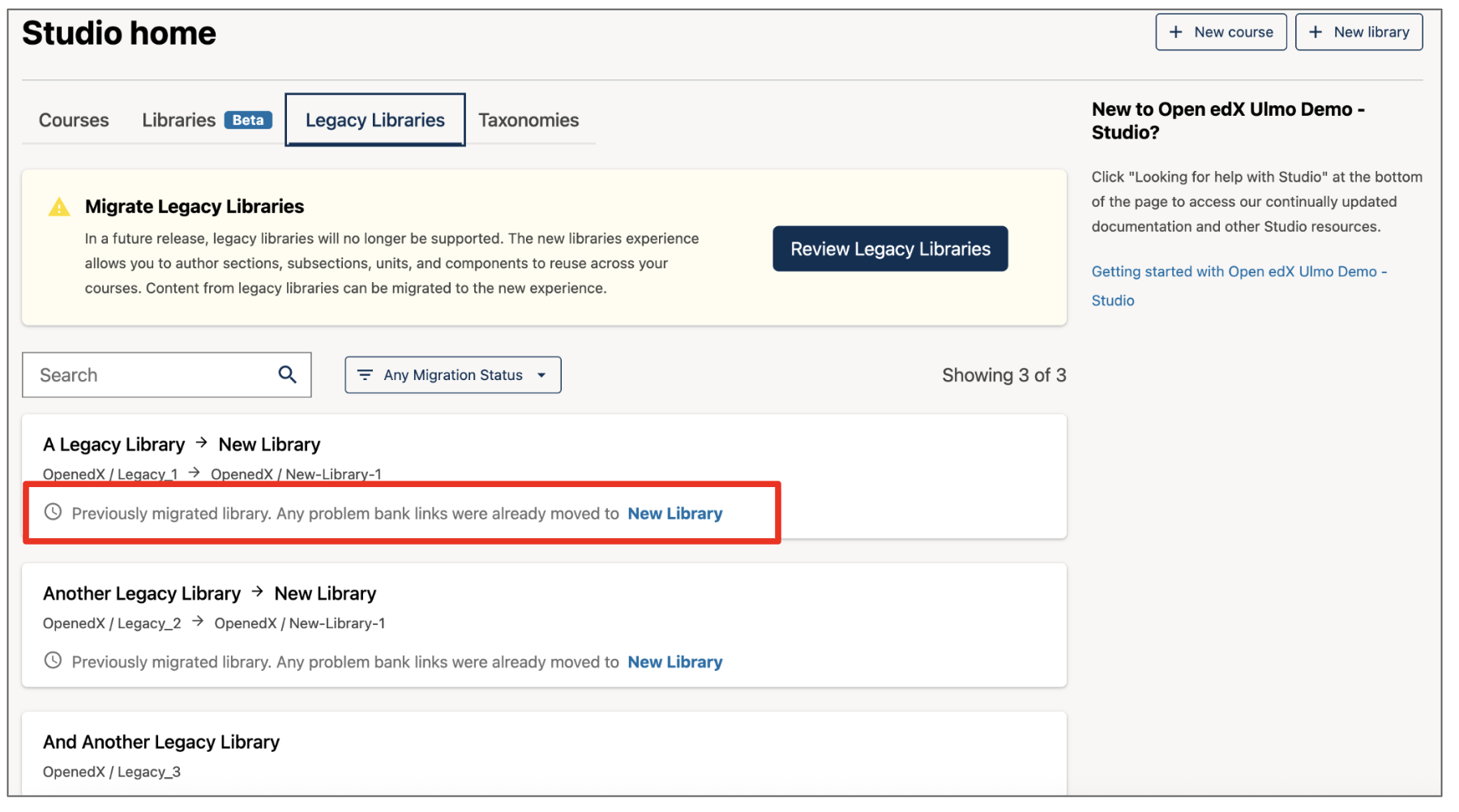
Confirm Legacy migrations are complete#
Navigate to the Legacy Libraries tab on Studio Home. Each migrated Library will contain a redirect link.
Update course content referenced in Legacy Libraries#
Navigate to the unit page of the course that references Legacy Library content. You will see a notification that the Library is no longer supported and needs to be updated in order to sync any future content changes. Click “update reference”.
Note
Content in the Library must be published before any references can be synced.
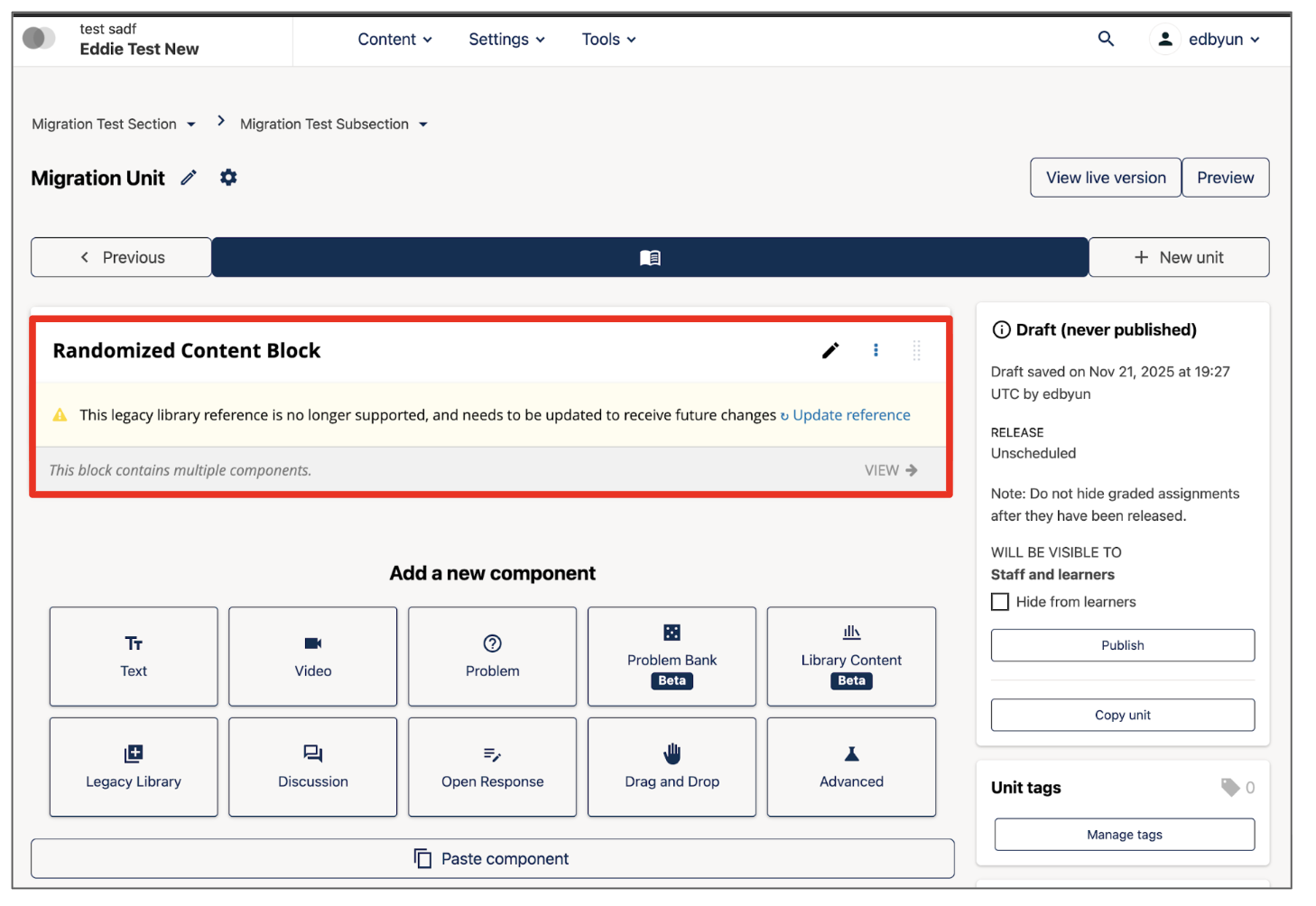
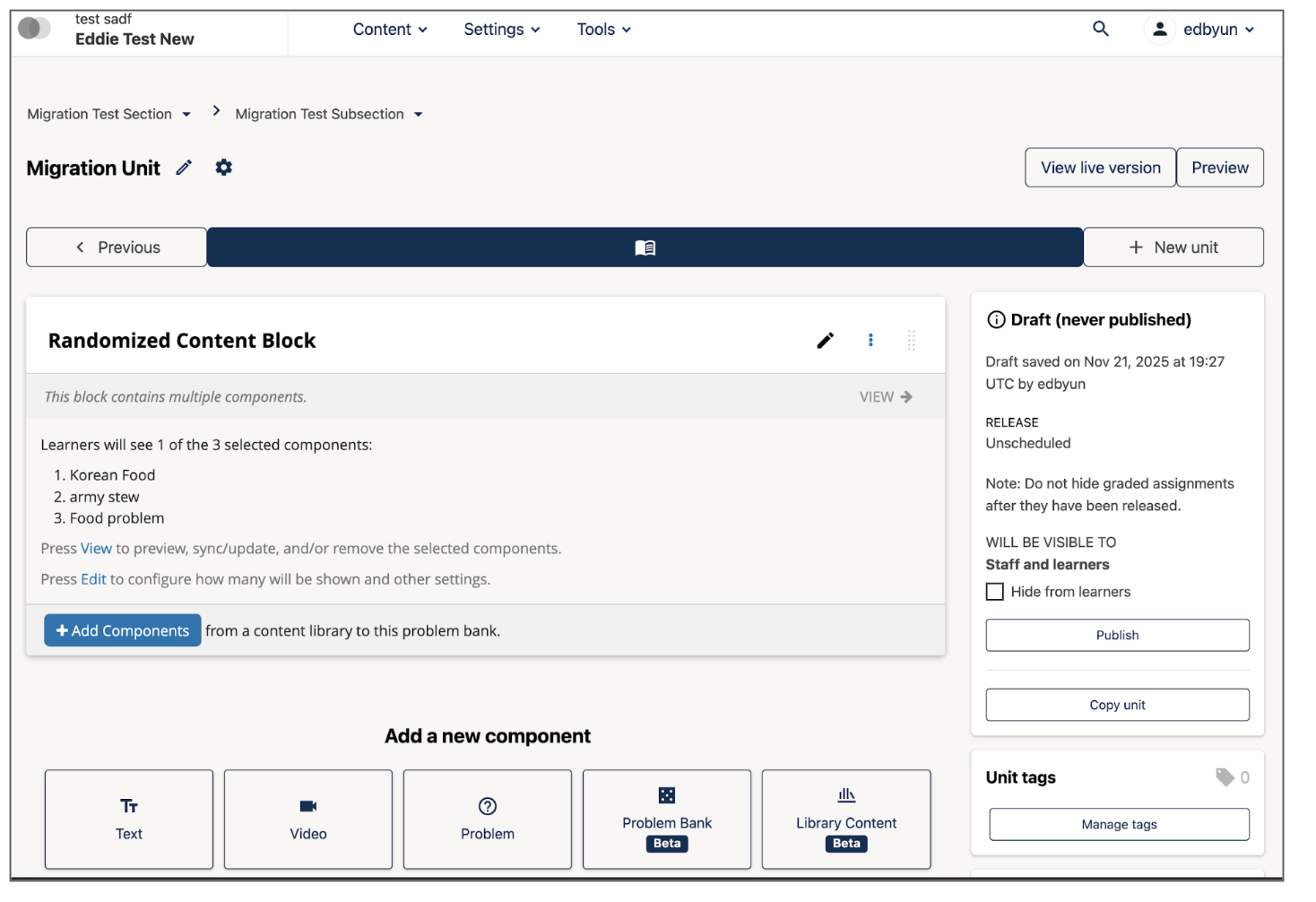
You will now see the content referenced in the course. Any future changes made to the referenced content can now be synced to the course using the Sync Content workflows.
See also
Create and edit content in a Library
Create and edit units in a Library
Search for content in a Library
Use content sidebars to manage content
Add Library content to a course
Maintenance chart
Review Date |
Working Group Reviewer |
Release |
Test situation |
2025-12-05 |
Product WG |
Ulmo |
Pass |