
Getting started with Discussions#
This section describes where to find discussions and the structure and elements of course discussions.
Where to find Discussions#
You can access course discussions in two ways:
From the course navigation#
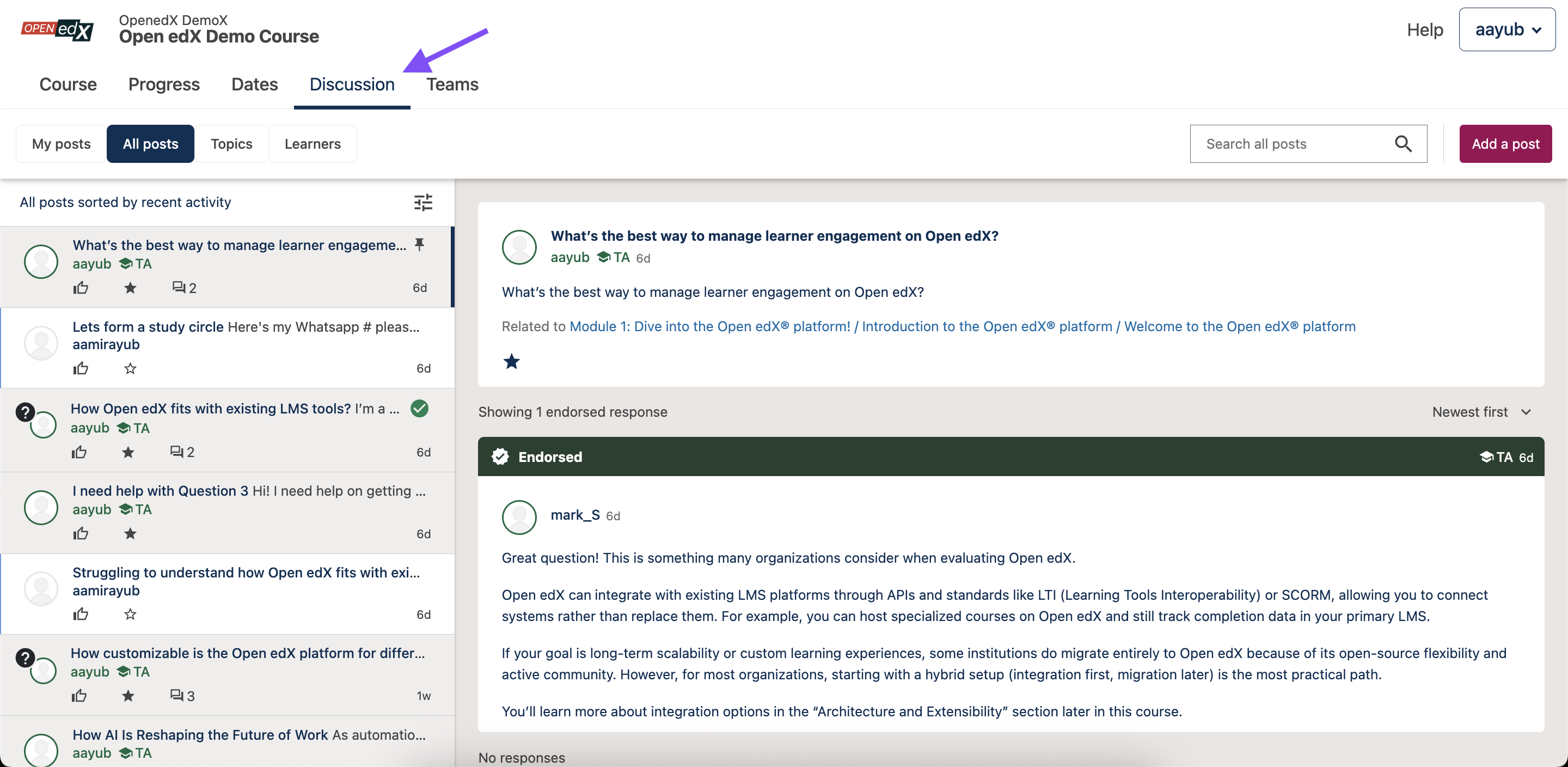
Click on Discussions tab in course navigation bar to access the Discussions page.#
Click the Discussions tab at the top of your course. This opens the full discussion page, where you can browse all topics, search, and post new questions or discussions.
If you don’t see this tab, its means your instructor has not enabled discussions for your course.
From within a course unit#
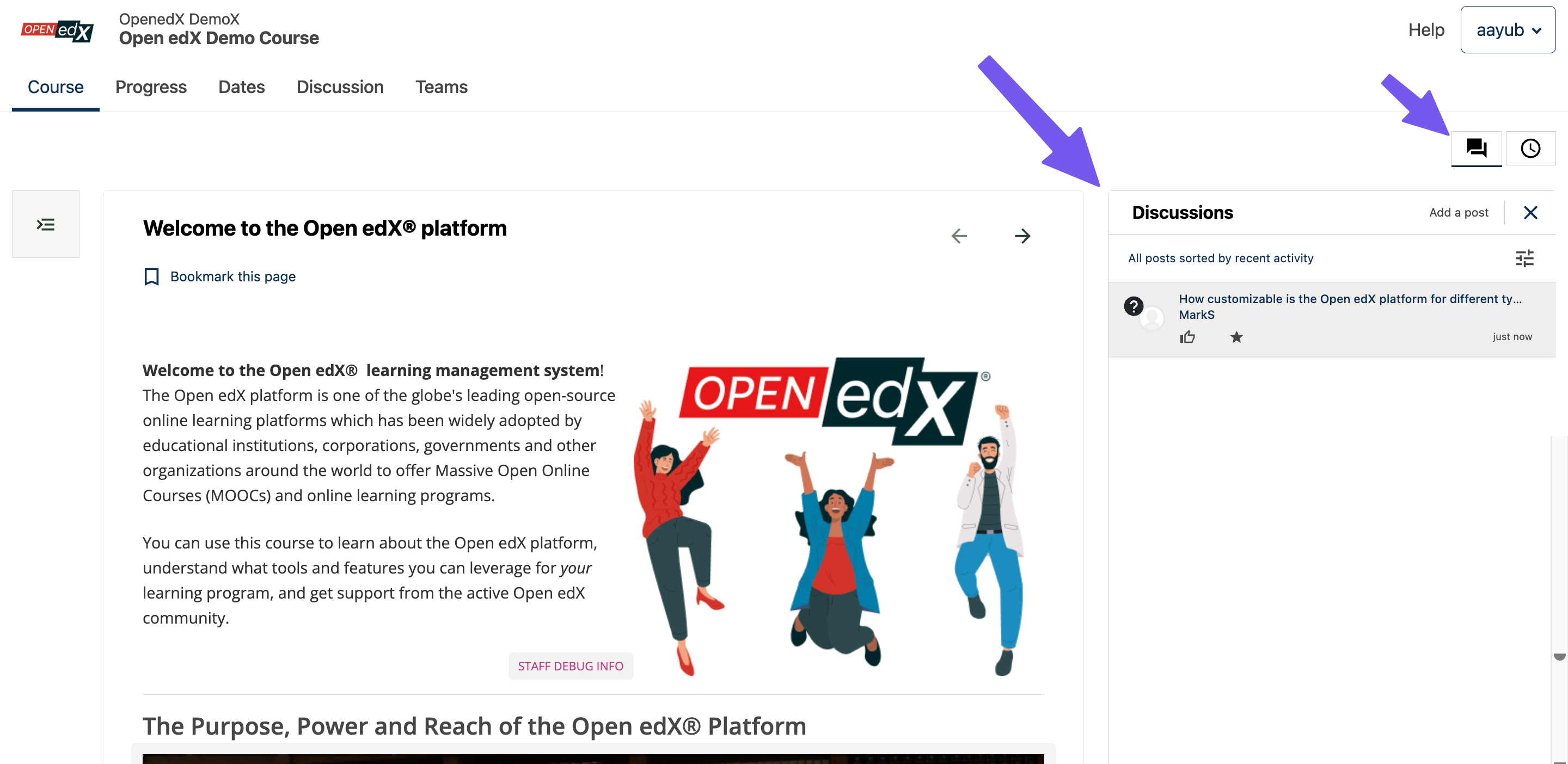
Click on the discussions icon on top-right to open or close the Discussions panel.#
Some course units include a discussion panel on the right side of the page. You can use this panel to read or take part in discussions related specifically to that unit.
If you don’t see this panel, it may be because:
Discussions aren’t enabled for that unit. This is common for assignments or exams. You can still use the main Discussions tab to participate in other discussions.
The panel is collapsed. Look for a button in the upper-right corner of the page (as shown in the image below). Click it to expand the discussion panel.
Remember that this panel only shows posts related to the course unit you are on.
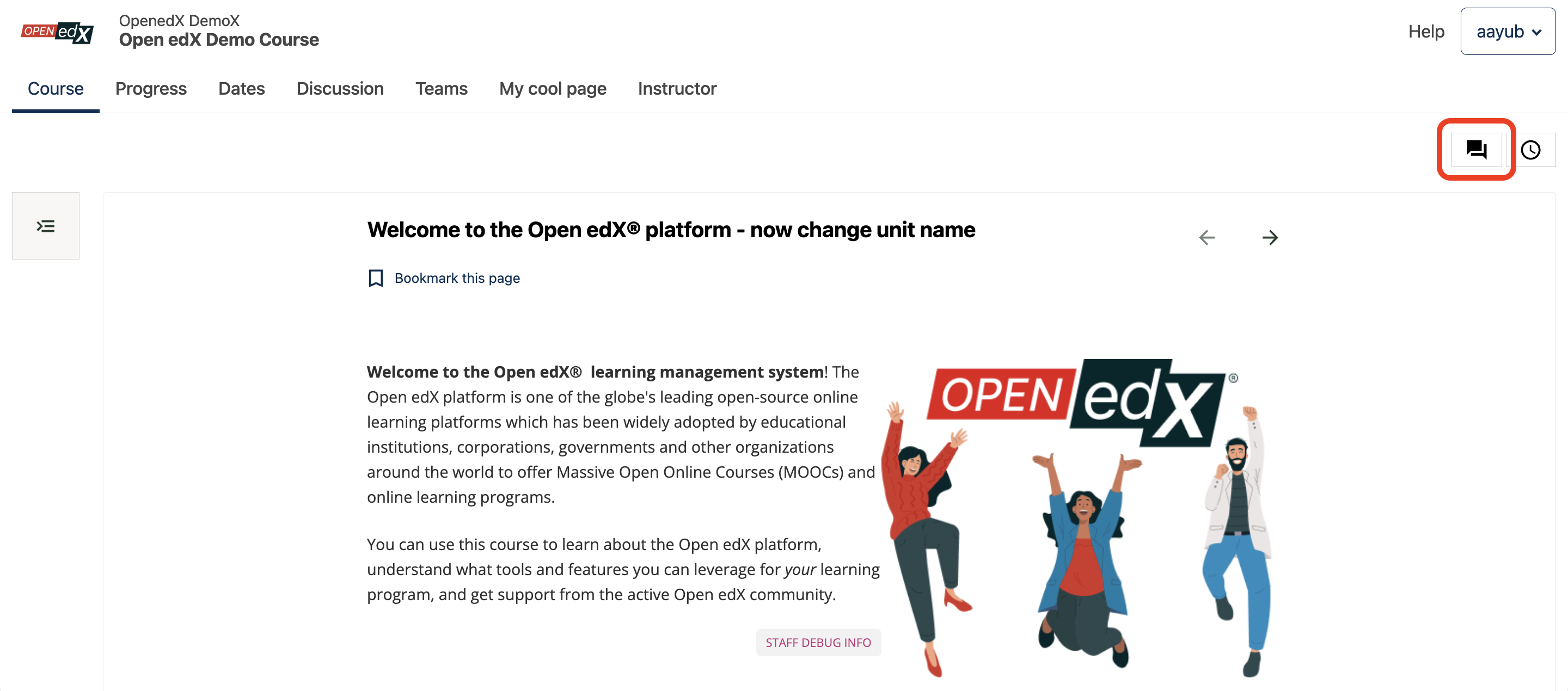
Click on the highlighted button on the top right to open the discussions panel.#
Basic elements#
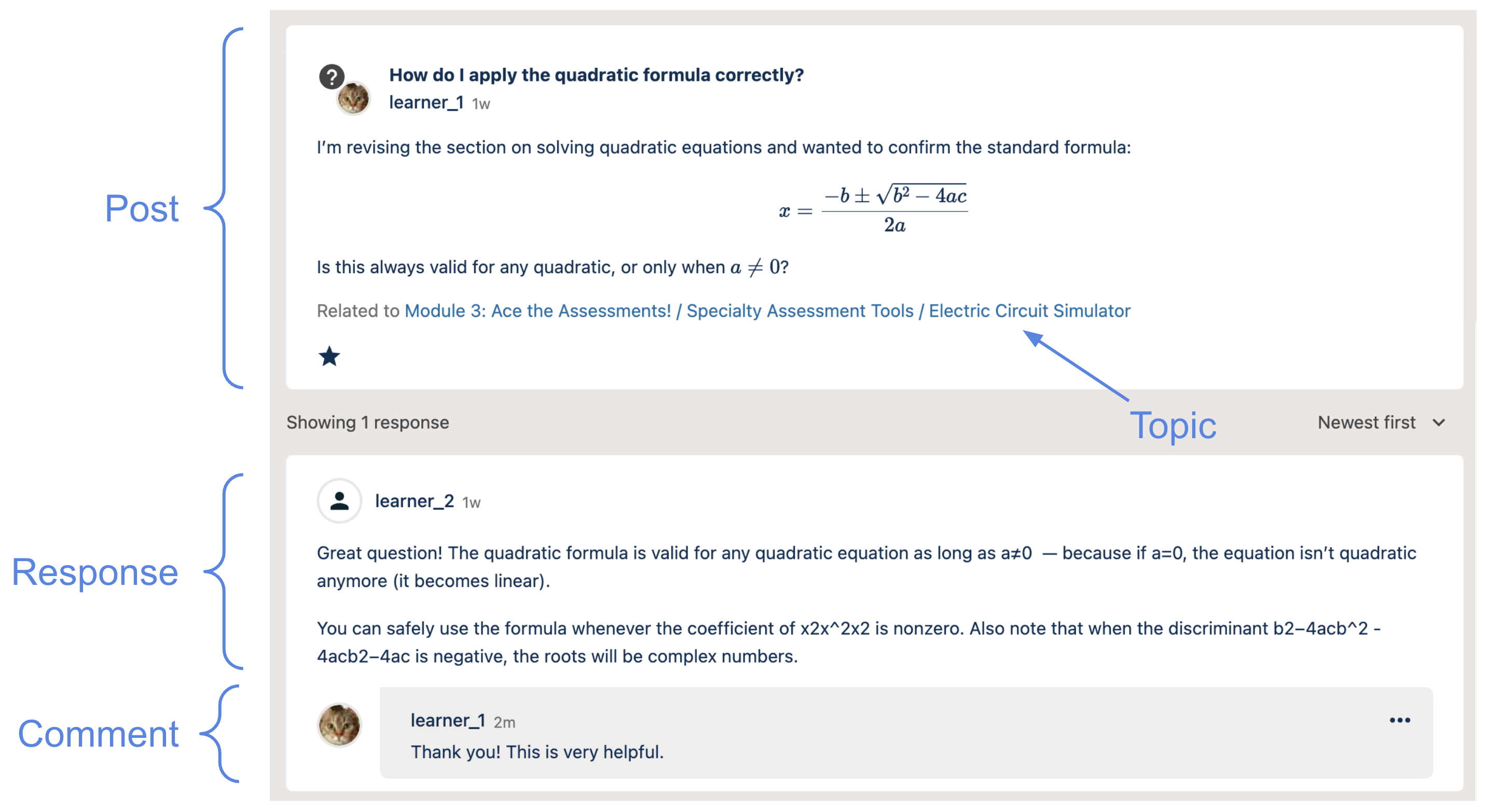
A discussion thread consists of a post and its topic and can have responses and comments on those responses.#
Each discussion has the following components:
Post: The question or idea that someone shares. A post starts a discussion. It has a title, name of the author, its type (question or discussion) and the topic it is linked to.
Topic: A topic indicates what the post is about. Every post belongs to a topic. Topics group related discussions together and help you browse and keep course conversations organized. For example, Week 2: Problem Set 1, General Questions, or Feedback.
Response: Other learners or course staff can write responses to a post. Responses add explanations, share experiences, or suggest solutions. They sit directly under the original post.
Comment: Within each response, learners can add comments. These are follow-ups that keep side conversations contained and easy to read. Comments add context within a single response.
Maintenance chart
Review Date |
Working Group Reviewer |
Release |
Test situation |
3rd Dec, 2025 |
Aamir Ayub |
Ulmo |
Pass |