
About Course Units#
One or more units make up a course subsection. Units are comprised of course components.
What is a Unit?#
A unit is a part of a subsection that learners view as a single page.
A unit contains one or more components, such as text with HTML markup, problems, or a video.
Viewing the Unit Page#
In Studio, when a unit name is selected in the outline, the Unit page opens.
The following example shows a unit page in Studio with one component, with boxes and text to show different areas and controls in the page.
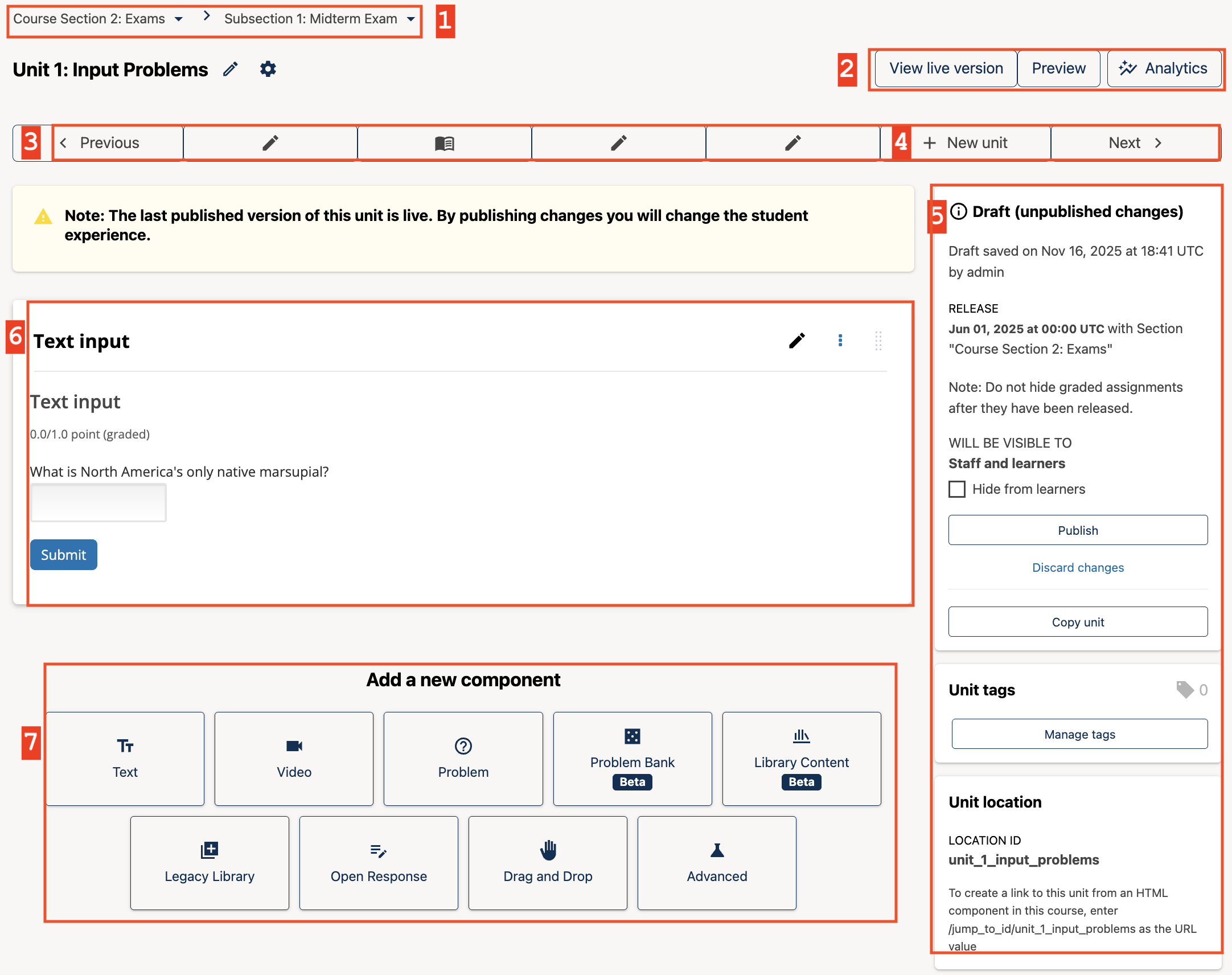
A unit navigation bar that shows where in the subsection this unit is located, and provides easy navigation options to nearby unit pages.
Options for testing the unit (View Live and Preview), and button to view in-context analytics (if Aspects: Learner analytics for the Open edX Platform is enabled).
Navigation tools to quickly get to other units in the subsection.
The + New unit button is a way to add new units to a subsection through the unit navigation bar.
Status panel for the unit.
A component in the unit.
The “New Component” section at the bottom of the page, allowing authors to add additional components to the unit.
Viewing Units as a Learner#
To a learner using the learning management system (LMS), each unit in the subsection is listed in the collapsable navigation bar on the left side of the Course page. The current unit is indicated with slight highlighting in the sidebar. The components in the current unit appear to the right of the sidebar navigation.
The following image shows a subsection in the LMS that contains several units.
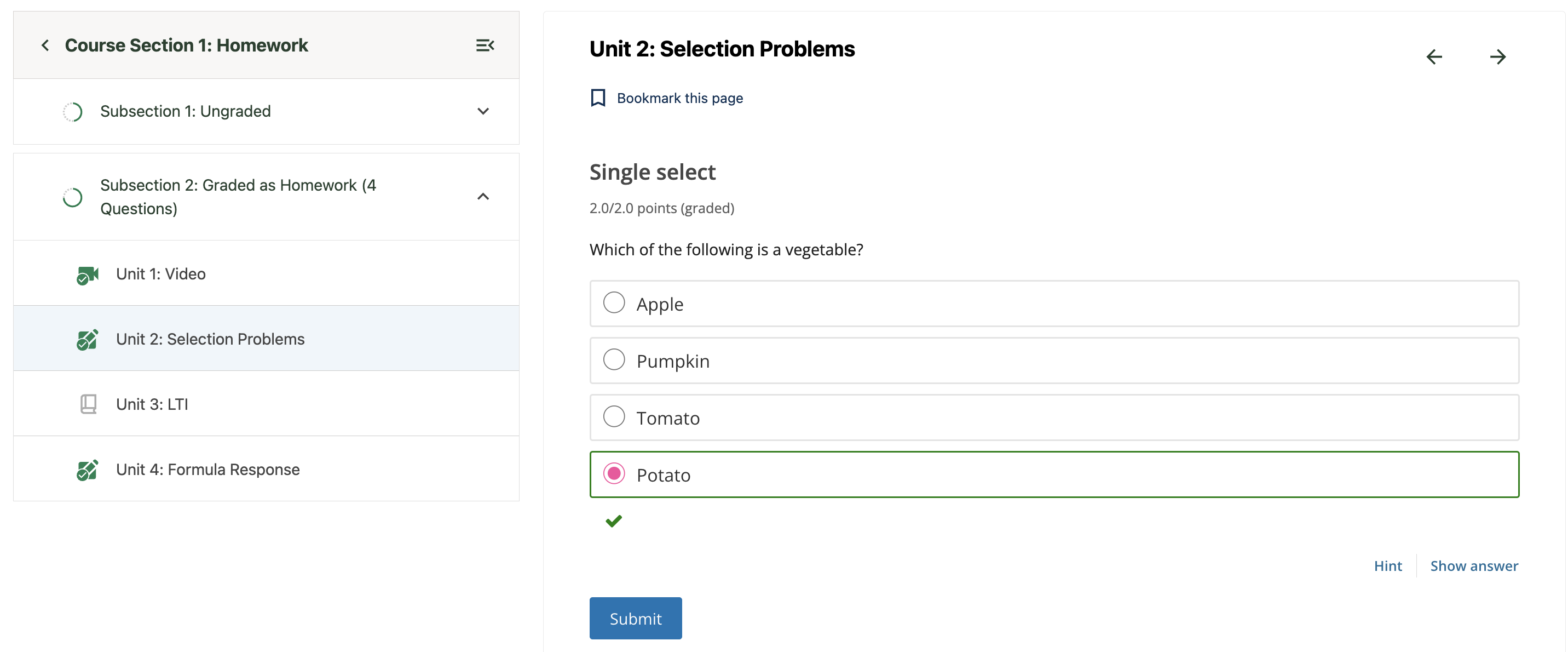
A green check mark next to a unit icon indicates that a learner has completed the unit. A learner has completed the unit if the learner has completed all the following actions.
Viewed all of each video.
Submitted answers for all of the problems.
Viewed all HTML content for at least five seconds.
Setting Units to Staff Only#
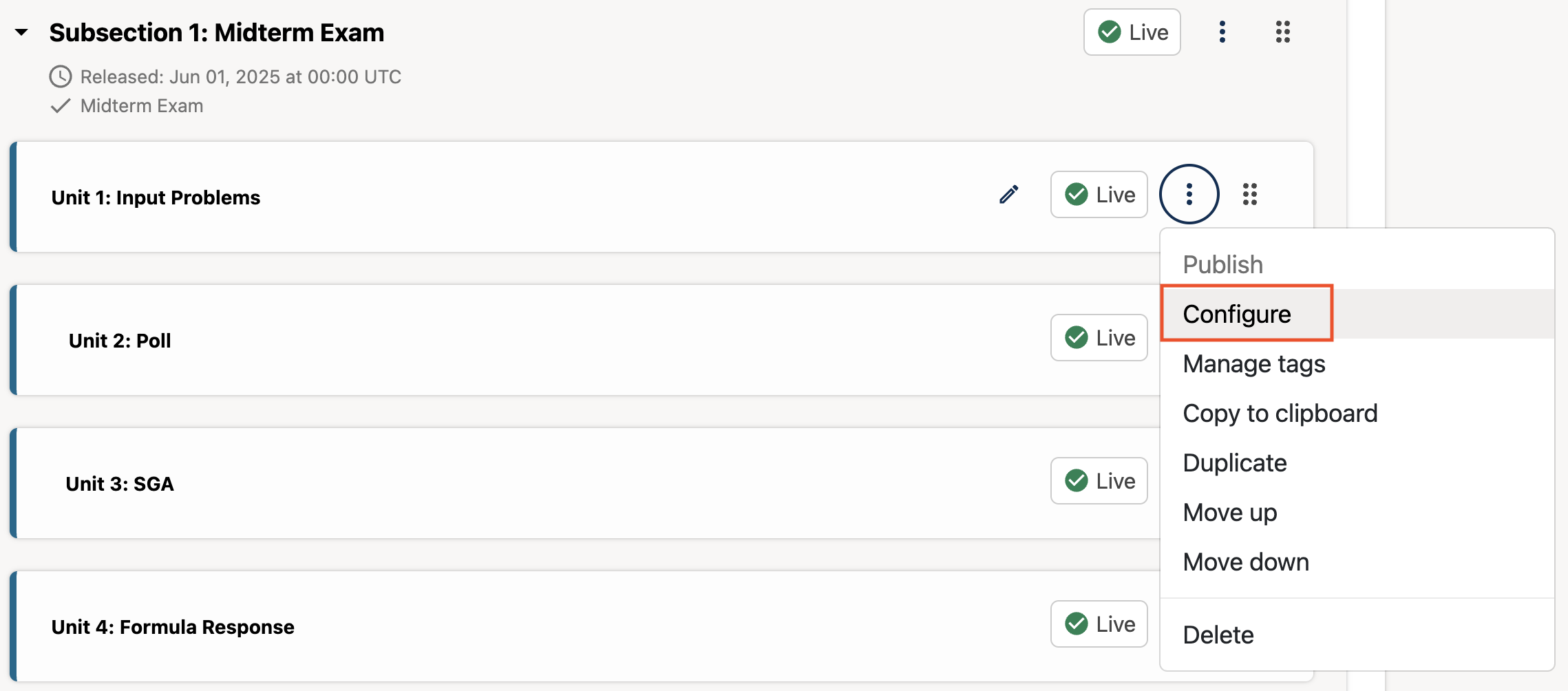
To set a unit to be visible to only staff, follow these steps.
From the three-dot menu at the unit level, choose Configure.
Locate the Unit visibility section and select Hide from learners.
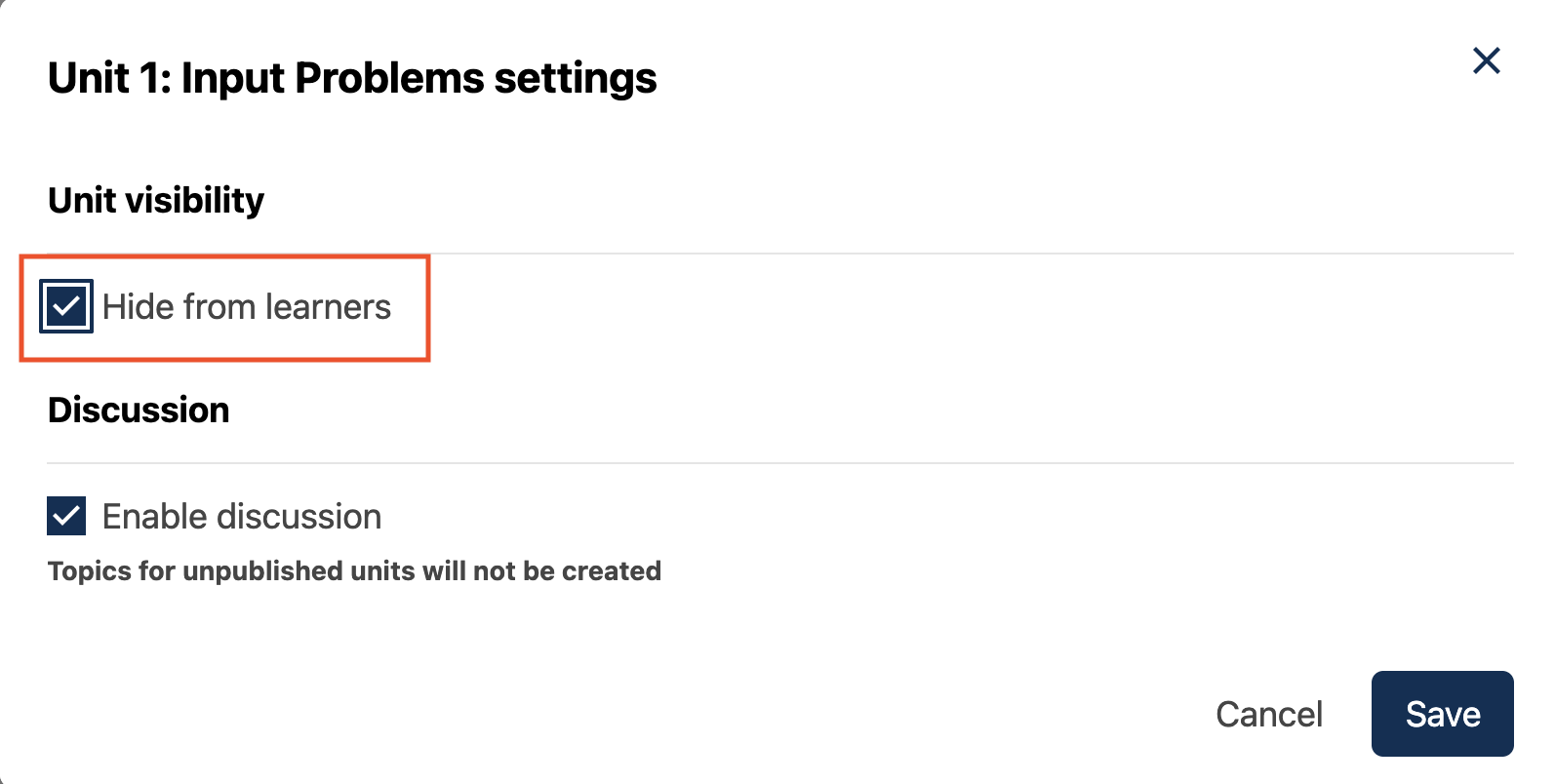
Select Save.
See also
Manage Course Units (how-to)
Set Access Restrictions For a Unit (how-to)
Copy and Paste Course Units (how-to)
Hide a Unit from Learners (how-to)
Copy and Paste Course Components (how-to)
The Unit Workflow (reference)
Guide to Course Content Development (reference)
Create a New Course in Studio (how-to)
About the Course Outline (concept)
Manage Course Outline (how-to)
Modify Settings for Objects in the Course Outline (how-to)
Publish Content from the Course Outline (how-to)
About Course Sections (concept)
About Course Subsections (concept)
Manage Course Sections (how-to)
Manage Course Subsections (how-to)
Manage Course Units (how-to)
View As Learner (how-to)
Maintenance chart
Review Date |
Working Group Reviewer |
Release |
Test situation |
2025-11-16 |
sarina |
Ulmo |
Pass |