
Sync a Library update to your course#
Publish Your Updated Library Content
In order to sync a piece of content within a course to the latest version in the Library, the updated Library content must first be published before it will be available to sync within the course.
Sync Library Unit Content#
When a piece of content is updated and re-published in a Library, the sync button appears with the text UPDATE AVAILABLE.
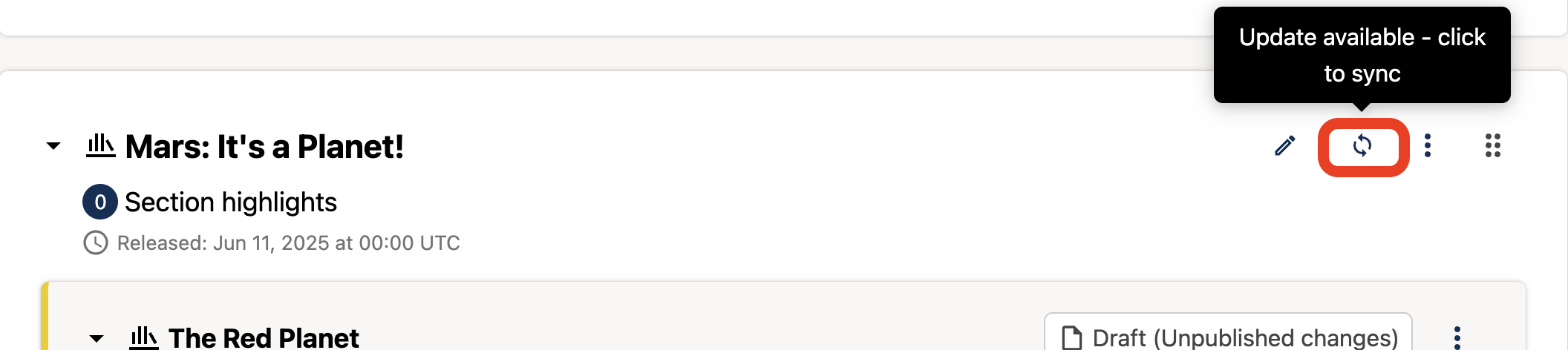
Click the button to start the sync process.
A modal pops up to show the old version and the new version of the content. Review the changes.
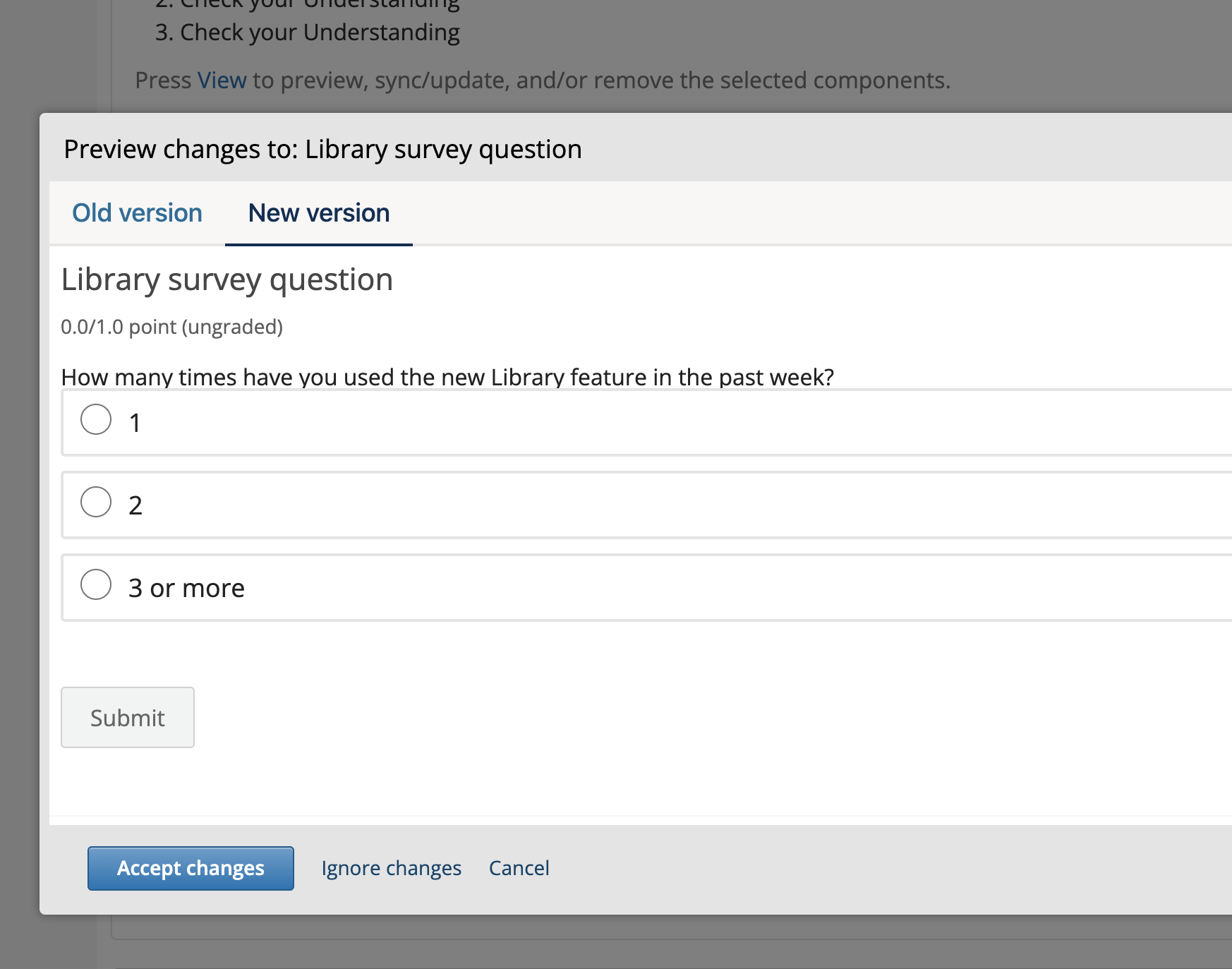
Choose to Accept changes, or Ignore changes if you’d prefer to keep your current version of the content.
Sync Library Subsections or Sections#
From within a course, library content can be synced when a library is updated.
From a course section or subsection, click the “Sync” button.
Alternatively, from a course page in Studio, select Content > Library Updates from the top menu bar.
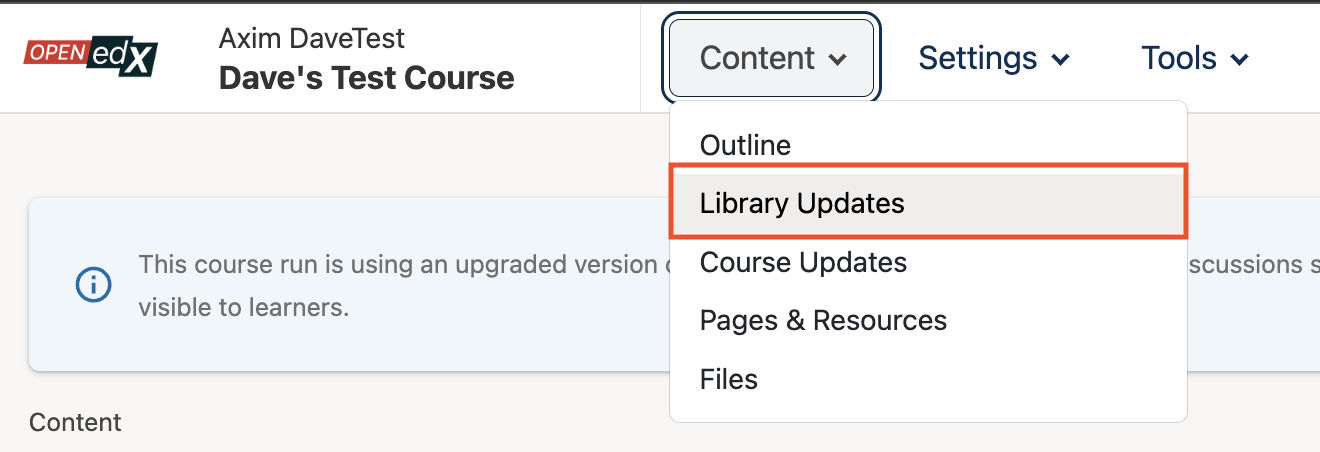
On the Content Libraries page, select Review Content Updates. If there is content to be updated, a notification dot will appear on this menu.
On the card for each Library with new content, there are options to Review Updates, Ignore the updates, or Update the library content in the course.
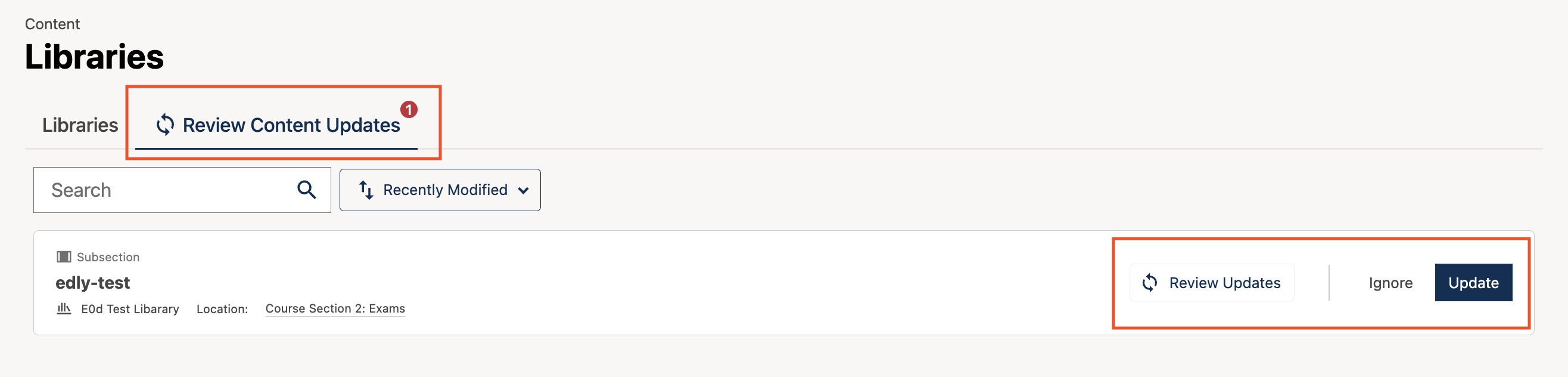
Select Review Updates to preview the incoming library changes. There will be a preview of what content will be changing with the update: the left side of the preview shows whach changes to the library content will be made, and the left side shows what the result of those changes will look like in the course.
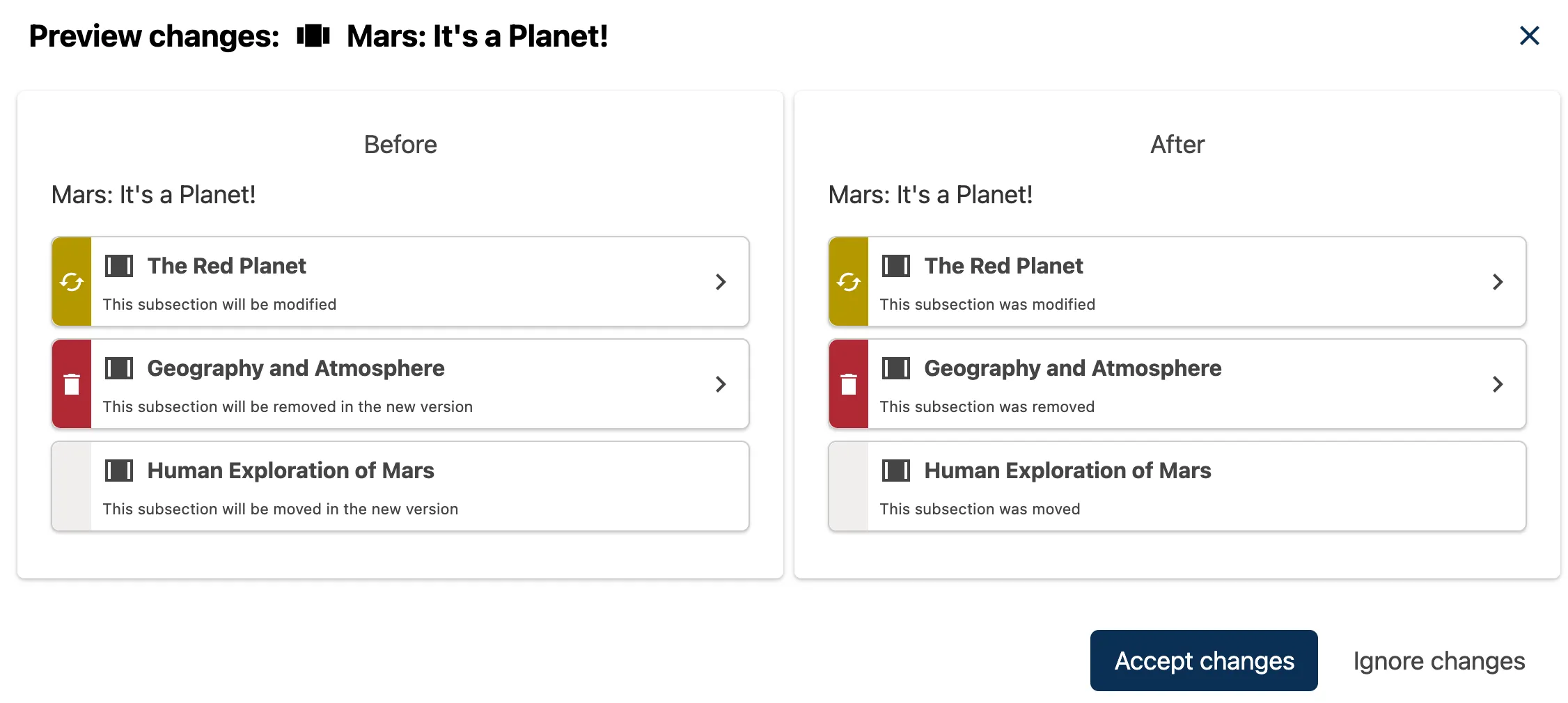
Select Accept changes to make the changes to the library content in the course. Select Ignore changes to keep library content as-is in the course.
See also
Create and edit content in a Library
Create and edit units in a Library
Create and Edit New Subsections and Sections
Maintenance chart
Review Date |
Working Group Reviewer |
Release |
Test situation |
2025-12-12 |
Product WG |
Ulmo |
Pass |