
Finding and Following the Right Conversations#
Discussions can grow quickly as a course progresses. Knowing how to browse and search helps you save time and discover conversations that matter to you.
Navigating the Discussions page#
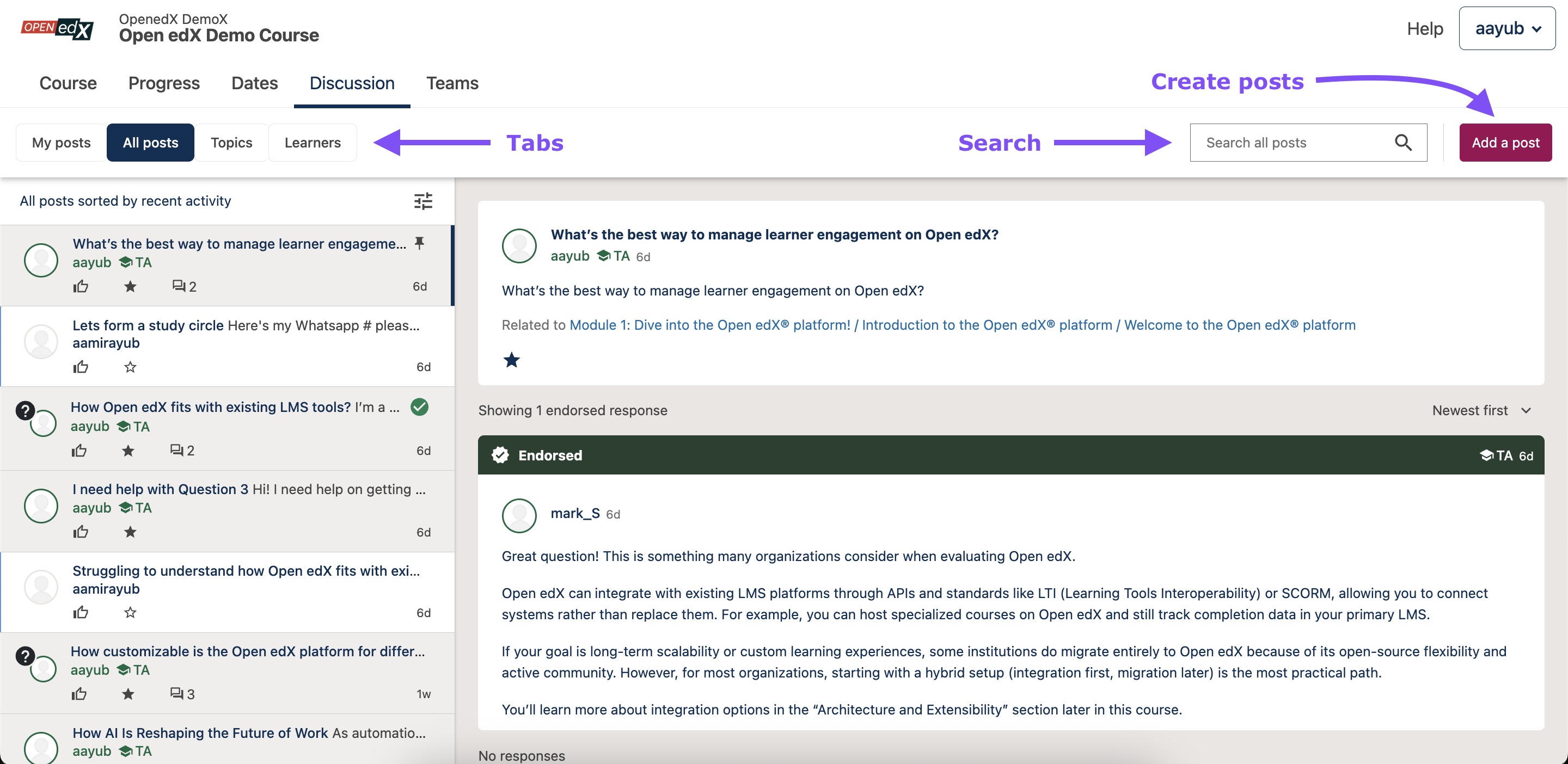
The Discussion page showing navigation pane, content list, and content view areas.#
When you open the Discussions tab in your course, you see four tabs at the top, as shown in the image below.
My Posts: Shows all posts that you’ve written or taken part in through a response or comment. Click a post title in the left panel to open it and see its responses and comments.
All Posts: Lists every post in the course discussions. By default, posts with the most recent activity appear at the top.
Topics: Displays all discussion topics in the course. Topics follow the same three-level hierarchy as the course content:
The top level represents course sections.
The second level shows subsections.
The third level lists units, which are the actual discussion topics that contain posts. Select a subsection to expand it and see its topics. When you click a topic name, you will see the posts related to it.
Learners: Shows everyone who has written a post, response, or comment. Click a username to see their contributions. Under each name you can see the number of posts they created and their total contributions.
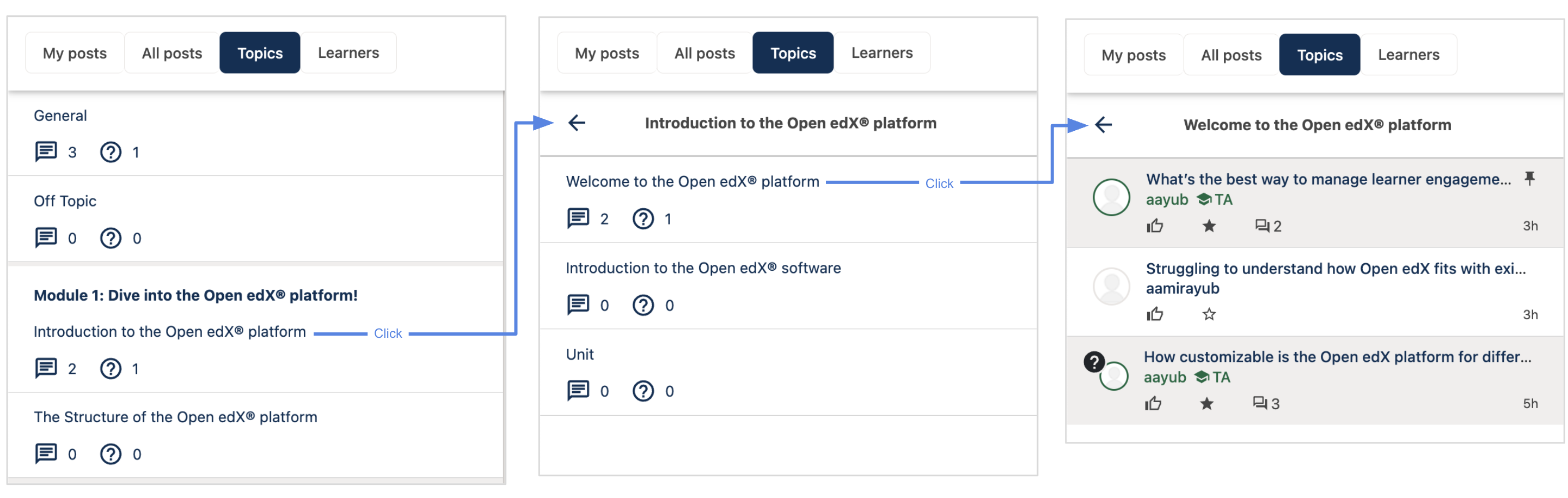
Follow these steps to navigate the 3-level topic hierarchy to view posts belonging to a topic.#
Tip
Use My Posts for tracking your own activity and Topics when you want to focus on the part of the course you are studying.
Discussions inside course units#
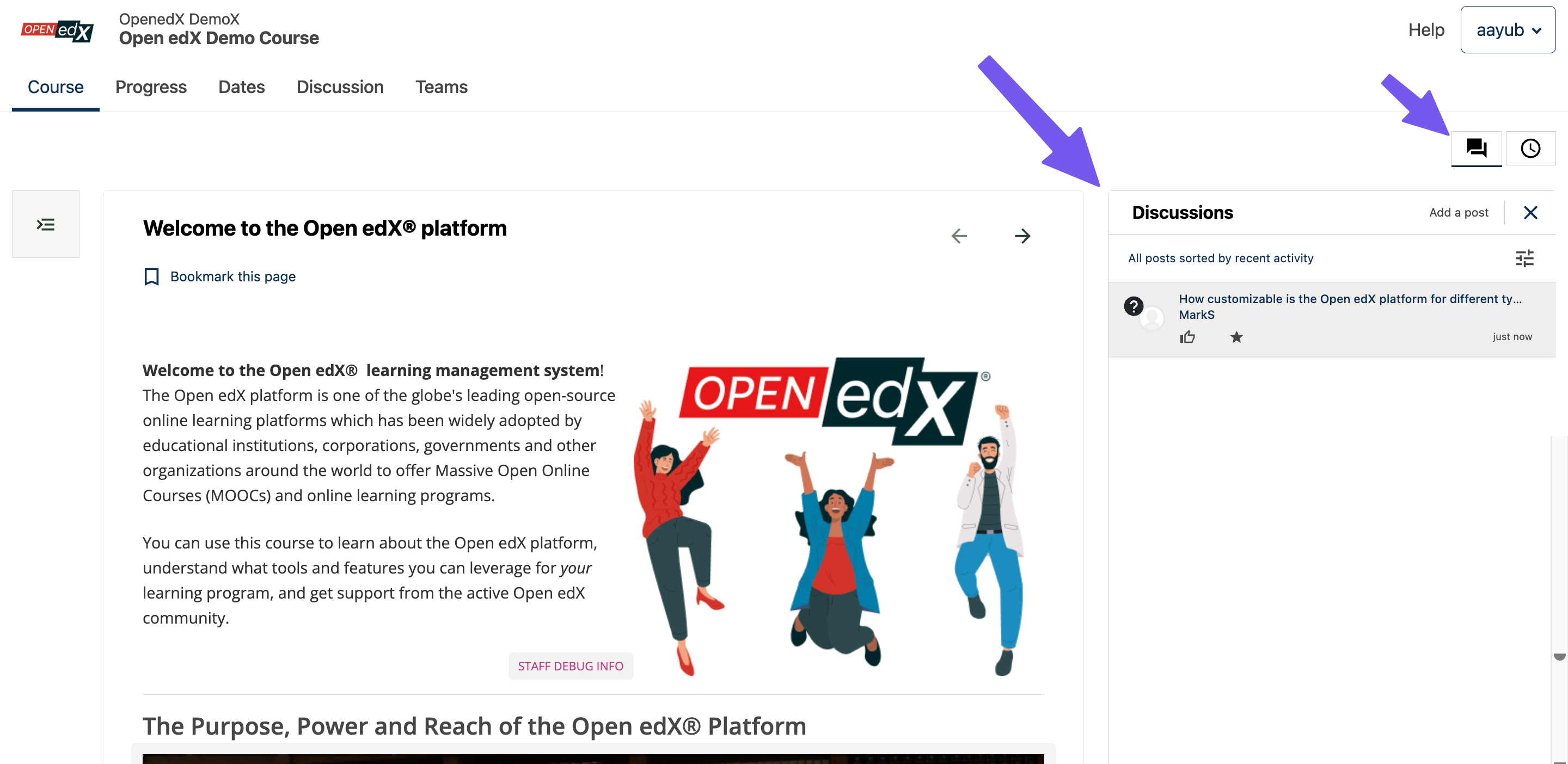
You can use Discussions sidebar to create or browse posts belonging to the course unit being viewed.#
Some course units include a discussion panel on the right side of the page. It shows only the posts related to that unit’s topic, giving you a focused view of the conversation. Any post you create here also appears on the main Discussions page.
Tip
Use the inline panel when you want to talk about something shown on the page. Use the main Discussions tab when you want to search or browse across the entire course.
Searching and filtering#
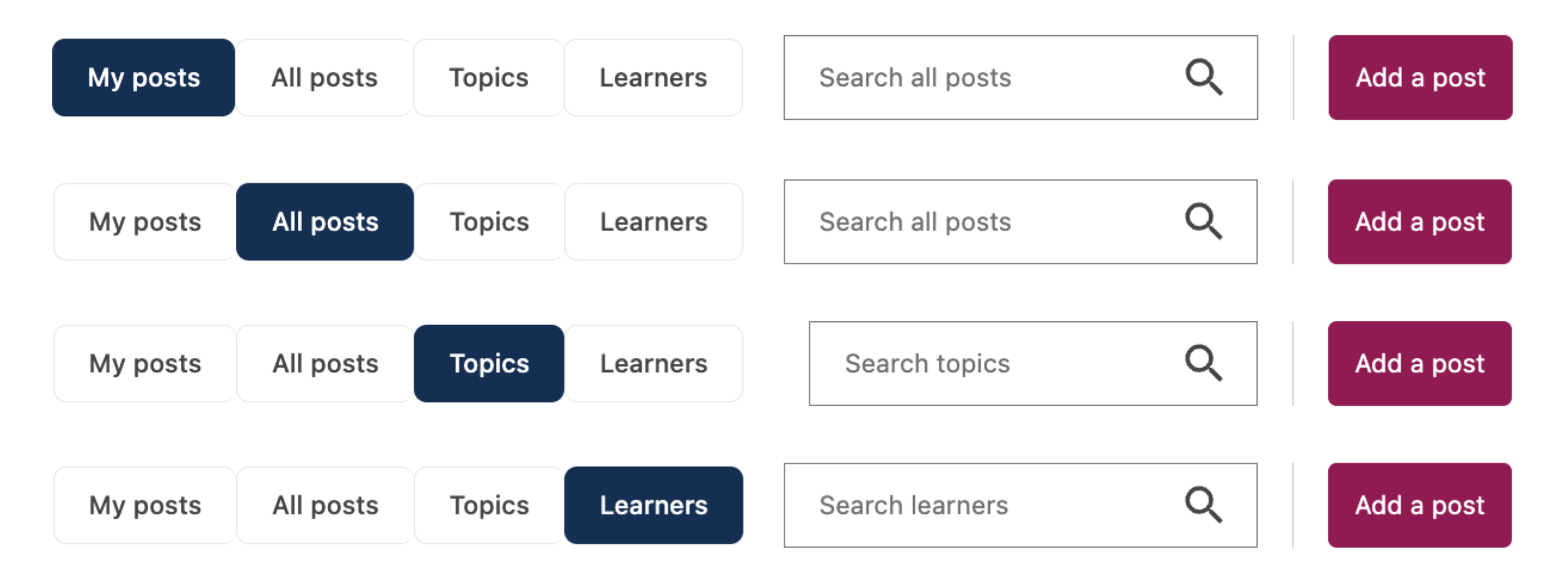
You can change scope of search by selecting any of the 4 tabs on discussions page.#
The search field at the top of Discussions page lets you search for:
Discussion content when you have All Posts or My Posts tab open
Discussion topics when you have Topics tab open
Discussion users when you have Learners tab open. You can search by full or partial usernames.
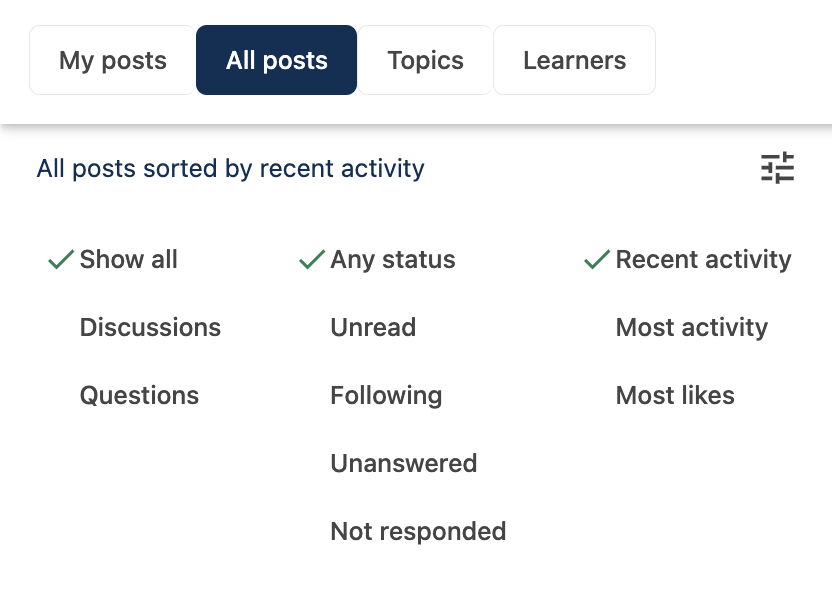
Use sorts and filters to find conversations you are interested in.#
You can also filter or sort posts by clicking the Filter icon in the top right of the post list panel:
Filter by type: Discussion or Question.
Filter by status: Unread, Following, Unanswered or Not responded.
Sort by: Recent activity, Most activity, or Most likes.
By default, all post types and statuses are displayed, sorted by recent activity.
You can also sort individual responses by date created, from within the post itself, as shown in the image below.
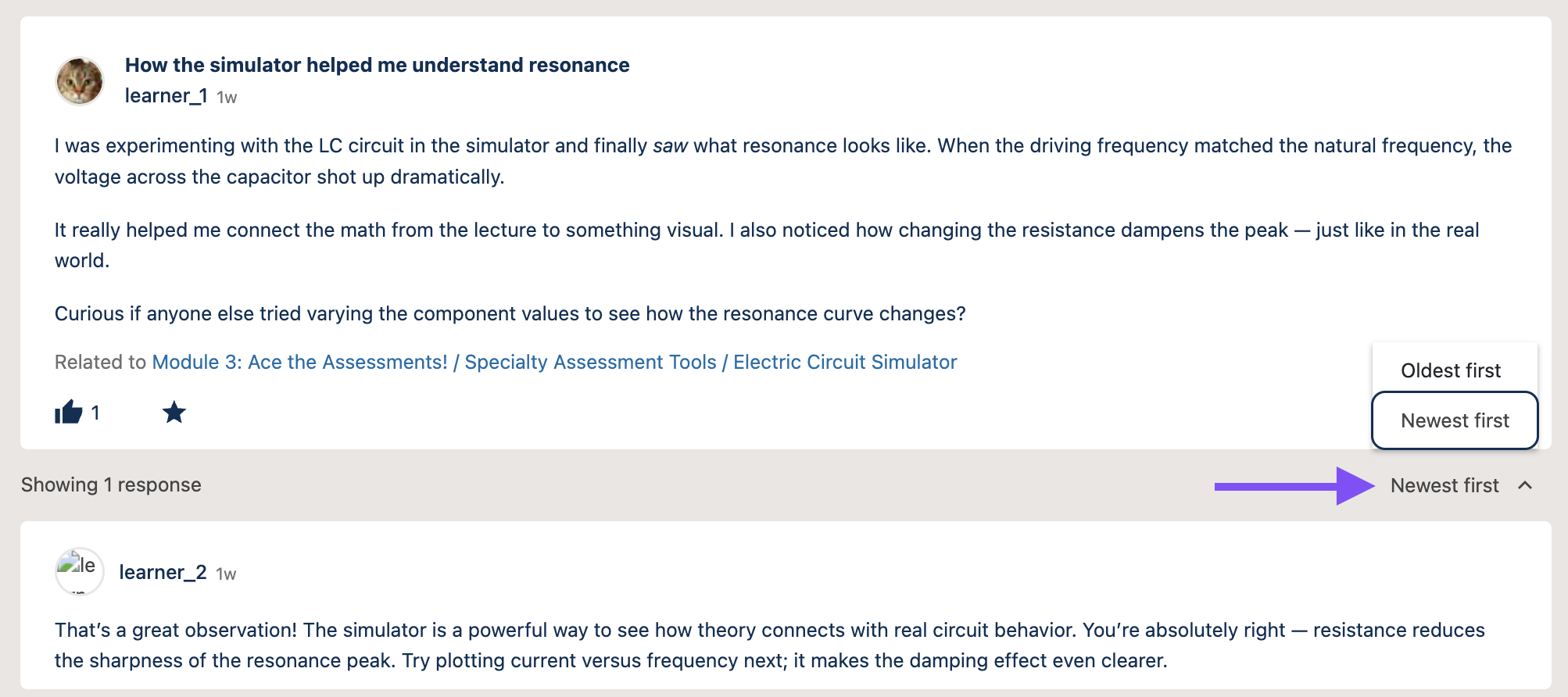
Use response sort option to sort responses by date created.#
Viewing pinned and followed posts#
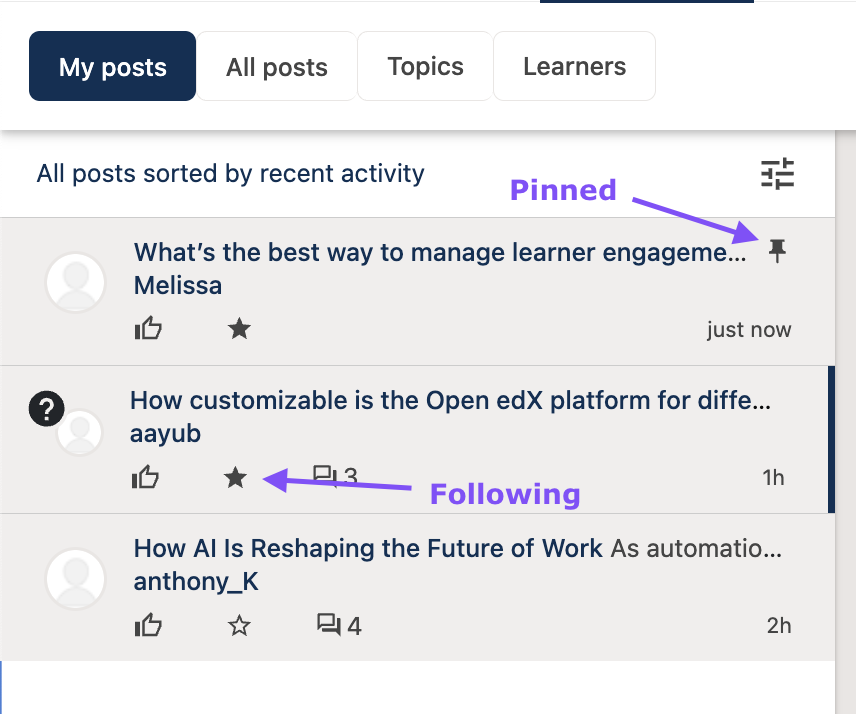
Pinned posts appear on top of the list and followed posts display a filled star icon. You can filter for followed posts from the filter menu.#
Instructors and moderators can pin posts. These posts stay at the top of every list. They often contain key announcements or resources from the course team.
Posts you are following display a filled star icon in post list and at the bottom of the post. To view only those, open the All Posts tab and apply the Following filter. Follow posts that relate to your project or assignment so that you get updates when new responses arrive.
By default, you are following every post that you author.
Note
You will receive notifications of any activity on posts that you are following. Learn more in Staying Updated with Notifications.
See also
Maintenance chart
Review Date |
Working Group Reviewer |
Release |
Test situation |
3rd Dec, 2025 |
Aamir Ayub |
Ulmo |
Pass |