
Require an Entrance Exam#
Turn on the Entrance Exam feature
In order for the Entrance Exam feature to work, it must be enabled on your Open edX instance. It is not enabled by default.
Please contact your site administrator to enable the FEATURES[‘ENTRANCE_EXAMS’] flag.
To require an entrance exam, follow these steps.
In Studio, open your course.
On the Settings menu, select Schedule & Details.
On the Schedule & Details page, locate the Requirements section.
Select the Require students to pass an exam before accessing course materials option.
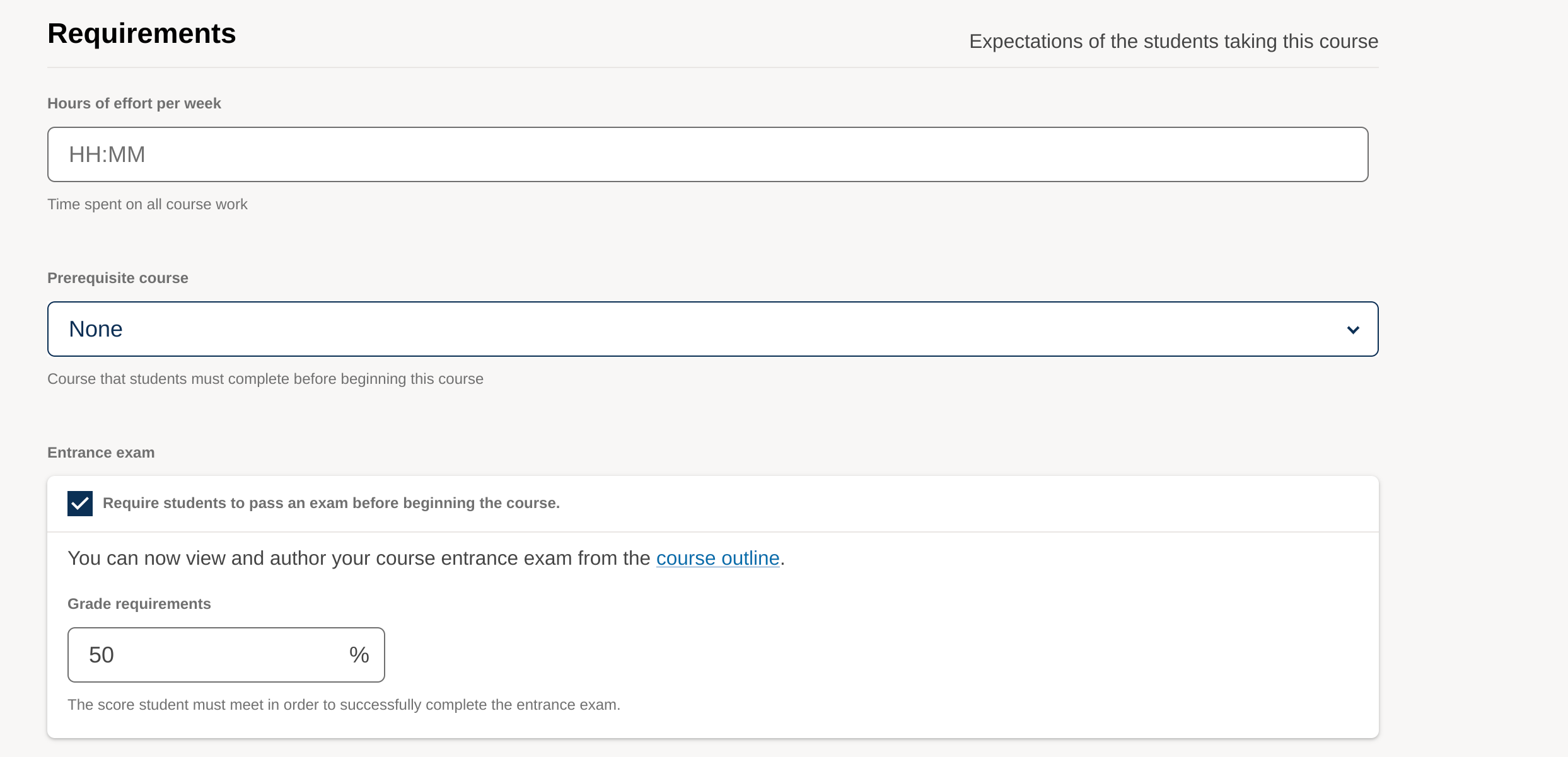
In the Grade Requirements section, set the percentage score required to pass the exam (default is 50%).
Select Save Changes.
After changes are saved, Studio automatically creates an Entrance Exam section in the course outline. To add content to the entrance exam, go to the course outline.
Create an Entrance Exam#
Adding as Entrance Exam automatically places a new section called “Entrance Exam” at the top of the course outline.
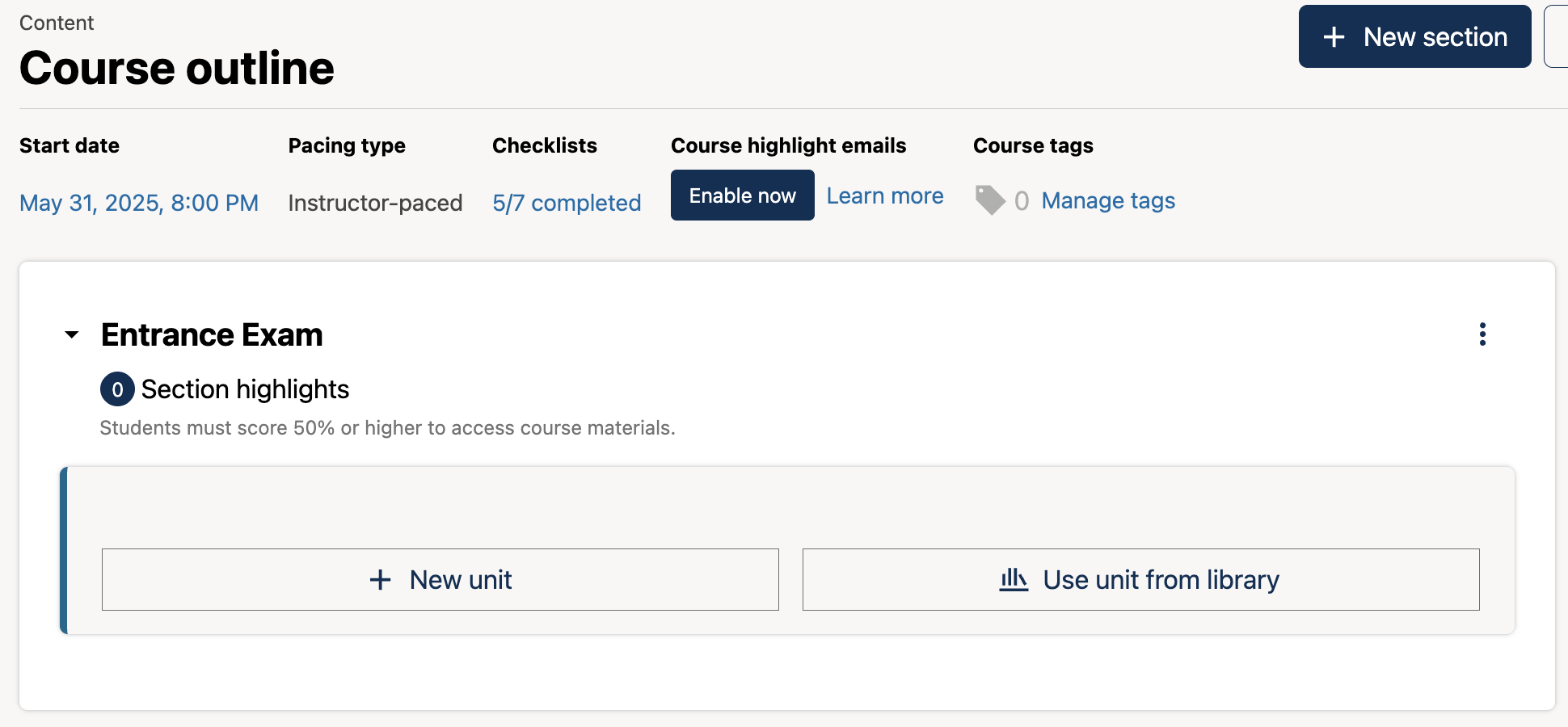
Creating entrance exam content is just like creating other course content. For more information, see the section on Content Creation and Management.
Adjust Scores in the Entrance Exam#
If the exam is changed or corrected after learners take the exam, there are several options to rescore the exam for individual learners. These options are available on the instructor dashboard.
In the LMS, select Instructor to access the instructor dashboard, and then select Student Admin. In the Entrance Exam Grade Adjustment section, the following options are available.
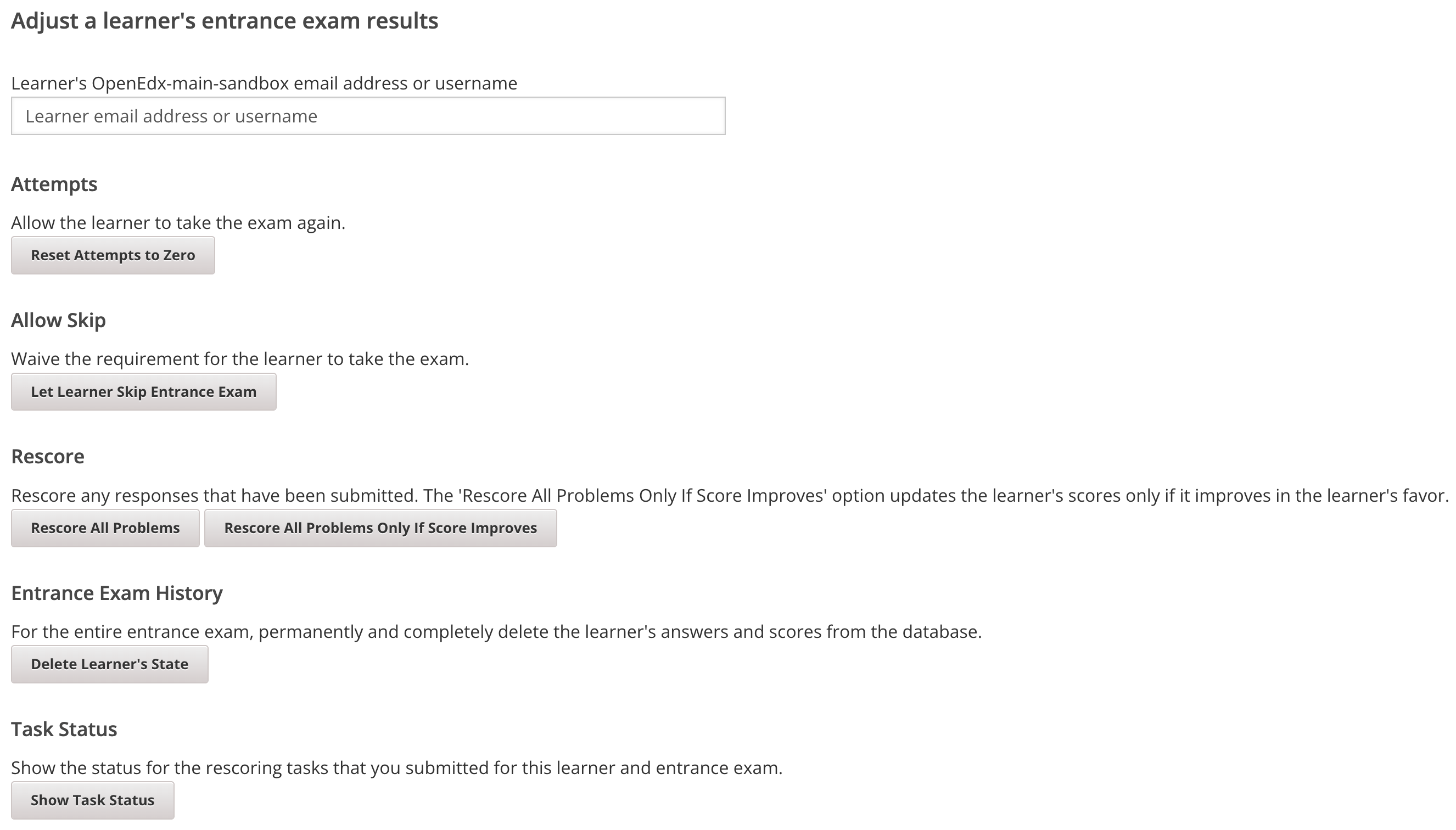
Attempts: Reset the value for one particular learner’s attempts back to zero so that the learner can begin work over again. For more information, see Reset Learner Attempts for a Problem.
Allow Skip: Waive the requirement for the learner to take the exam.
Rescore: Rescore any responses that have been submitted. The ‘Rescore All Problems Only If Score Improves’ option updates the learner’s scores only if it improves in the learner’s favor. For more information, see Rescore Learner Submissions for a Problem.
Delete Learner’s State: Delete a learner’s entire history for the exam from the database. For more information, see Delete a Learner’s State for a Problem.
Another option on the instructor dashboard is Task Status. If one of the above options are selected, the operation runs in the background. If you want to see a record of all the operations that have run for the entrance exam, select Show Task Status.
Maintenance chart
Review Date |
Working Group Reviewer |
Release |
Test situation |
2025-11-16 |
sarina |
Ulmo |
Pass |
03/11/2025 |
Leira (Curricu.me) |
Sumac |
Fail (openedx/docs.openedx.org#891) (this simply hasn’t been tested with the flag on) |