
Taking Part in Discussions#
This topic explains how to create, edit, and manage your contributions in course discussions. You can start a new post, respond to others, or help moderate discussions by reporting issues.
Creating a post#
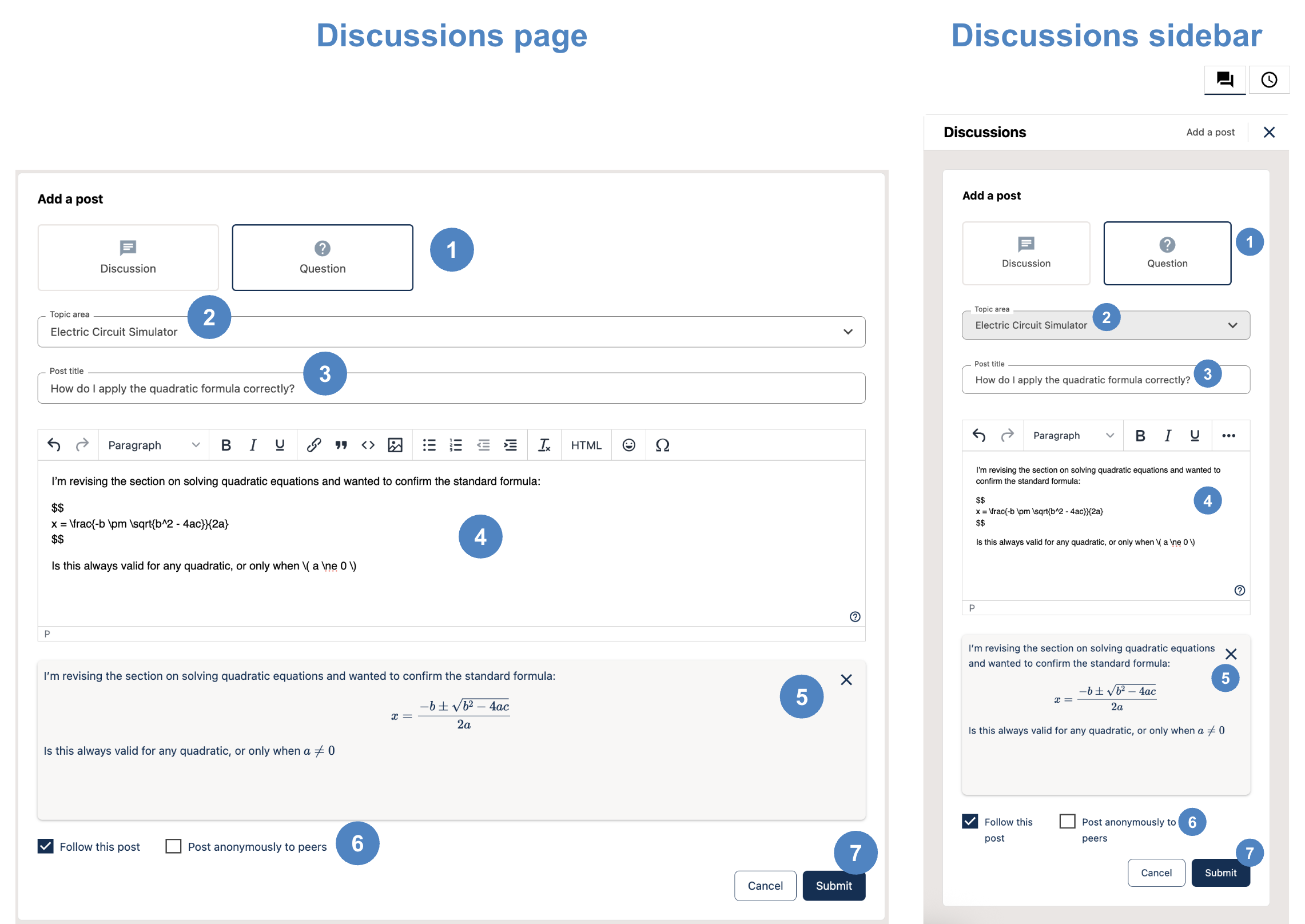
Form to create a discussion post on the Discussions page and in a course unit. By default, you are following the posts that you author.#
A post starts a new conversation.
Choose the right type before you post:
Question: when you need an answer or clarification.
Discussion: when you want to share an idea or start a conversation.
Select a topic that fits your post so others can find it easily.
Add a short, clear title that describes what your post is about.
Write your description. Use the toolbar to format text or insert images if needed.
Click Show preview (bottom right corner) to check your post before submitting.
If anonymous posting is enabled, you will see a Post anonymously to peers checkbox. When selected, your post appears anonymous to peers, but your identity remains visible to course staff and moderators. Some courses do not allow anonymous posting.
Click Submit to publish your post. You can edit it later if needed.
Tip
You can subscribe to notifications for new discussions or new question posts from the Preference Center. See Staying Updated with Notifications.
Responding and commenting#
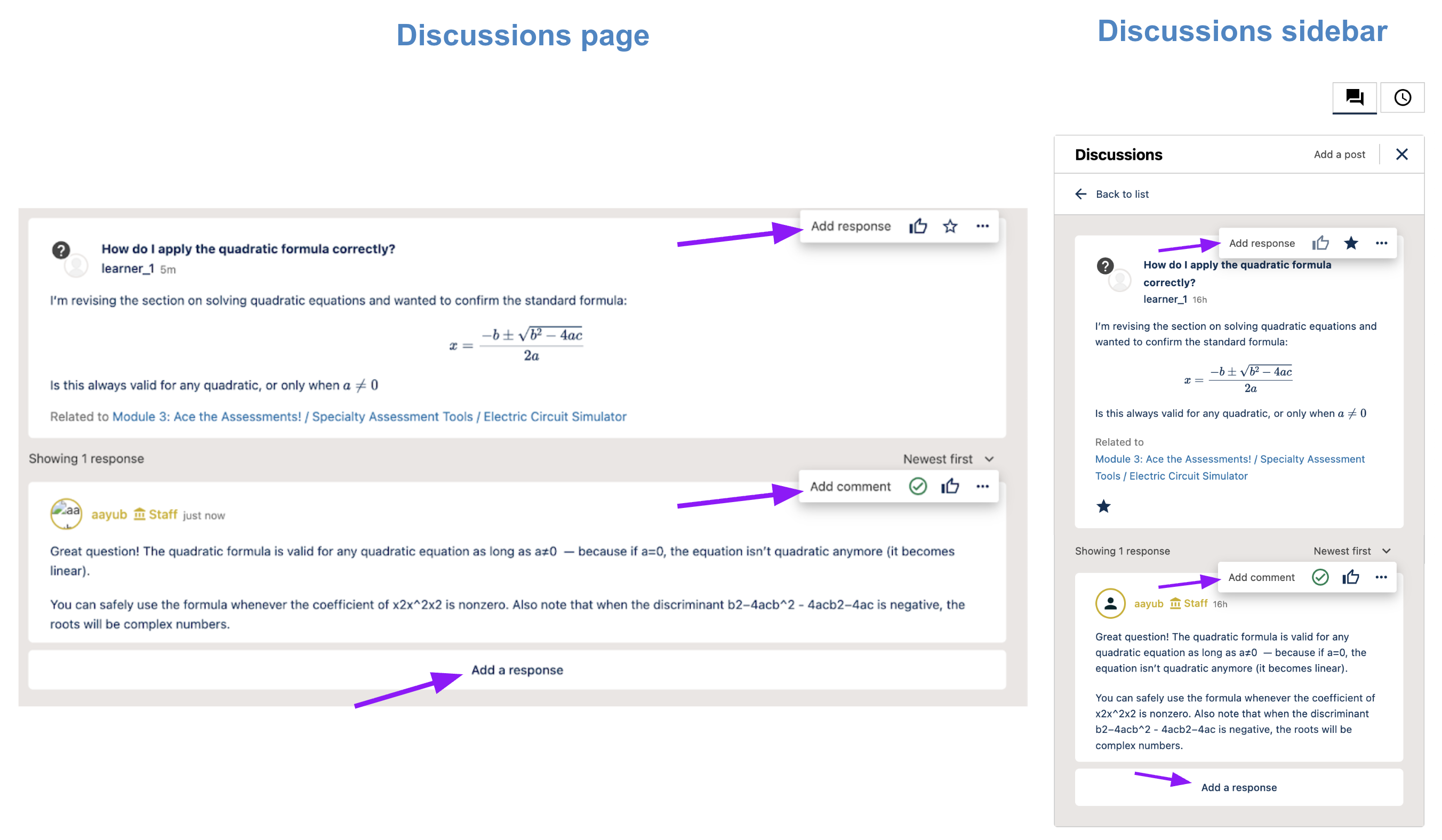
Option to create responses on a discussion thread can be found in actions menu on mouse hover or at the bottom of the thread. Option to create comments can only be found in actions menu.#
You can add to an existing conversation by writing a response or a comment.
A response adds your full reply or answer to the main post.
A comment adds a short note or clarification inside a specific response.
Open a post, write your response or comment, and click Submit.
Note
You will receive a notification when someone creates a response or a comment on your post or response. See Staying Updated with Notifications.
Editing or deleting your own contributions#
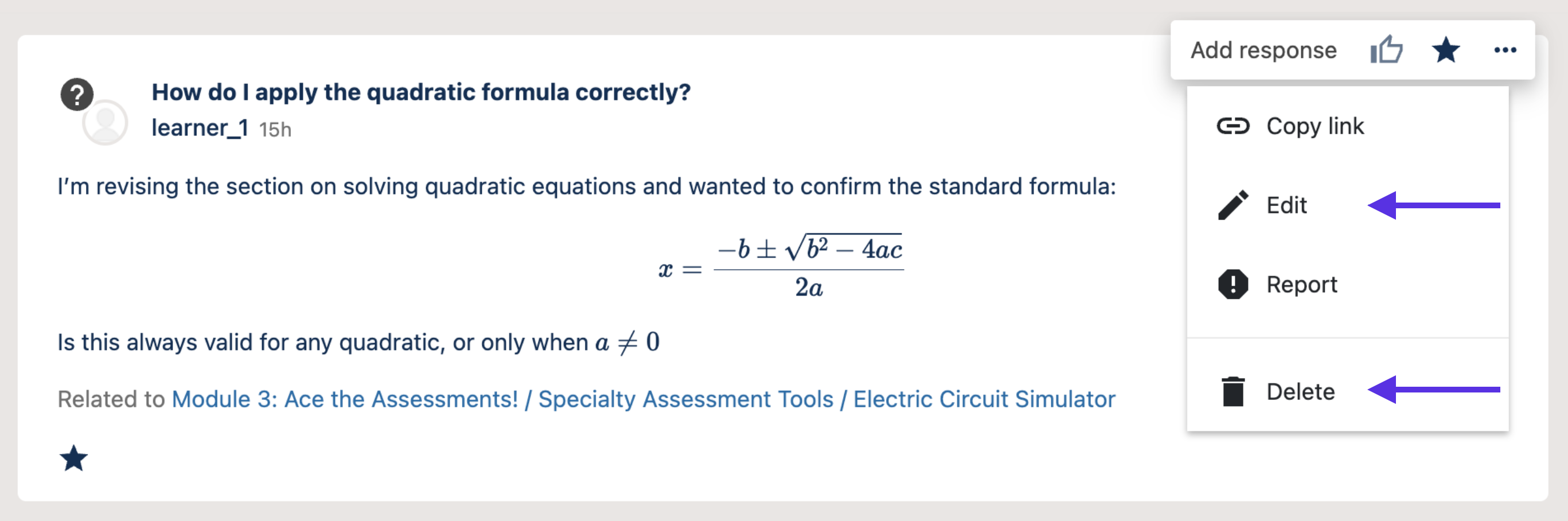
Use the options menu to edit or delete content that you’ve authored.#
You can edit or delete any post, response, or comment that you have written. Use the Actions menu on your contribution to make changes.
Be careful when deleting content:
Deletion is permanent and cannot be undone.
Deleting a post or response deletes all its responses and comments.
Endorsements and accepted answers#
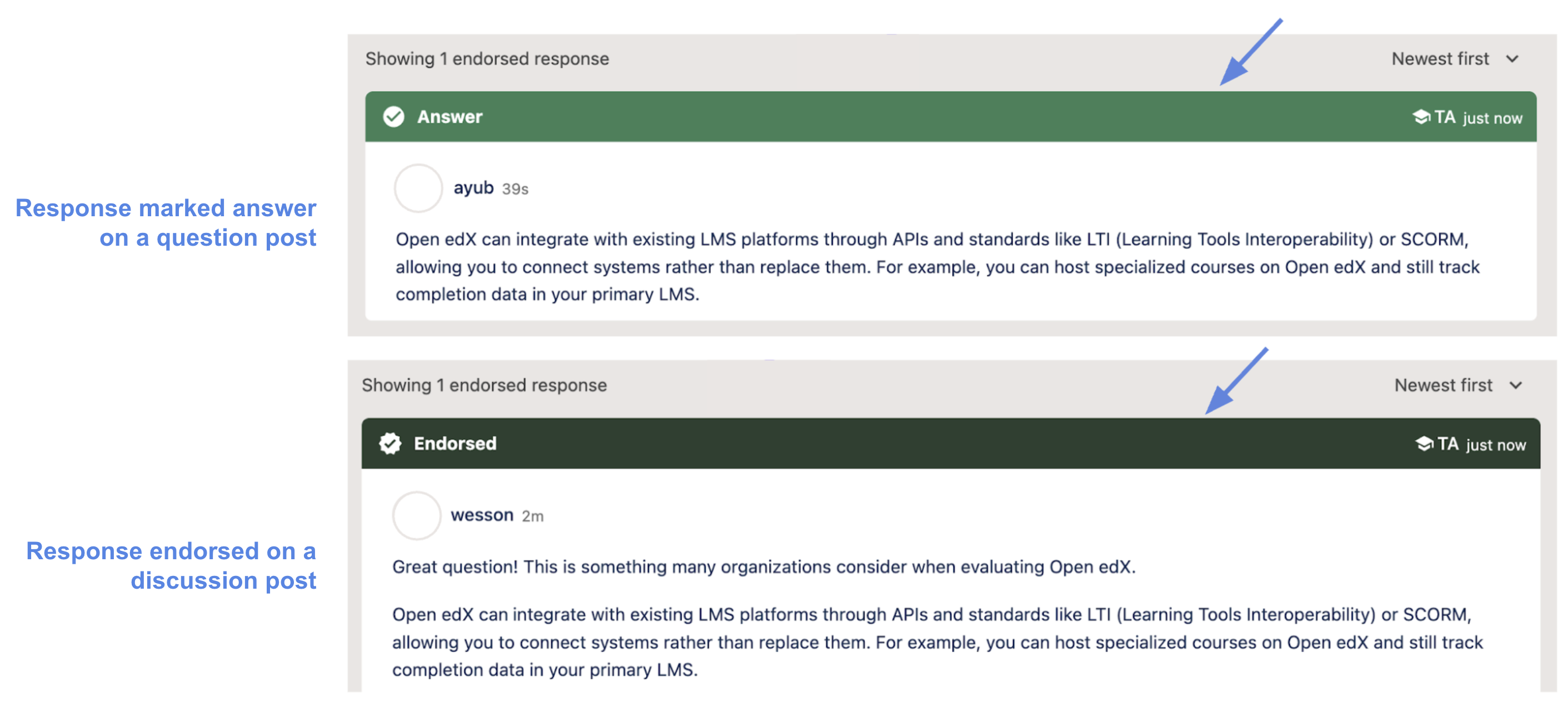
Responses that are endorsed or marked as answers display a banner on top.#
Forum moderators can endorse responses in discussion posts or mark them as the answer in question posts. Endorsed or marked responses highlight accurate or especially helpful information, and appear with a banner on top.
If you created a question post, you can mark a response as the answer yourself, as shown below.
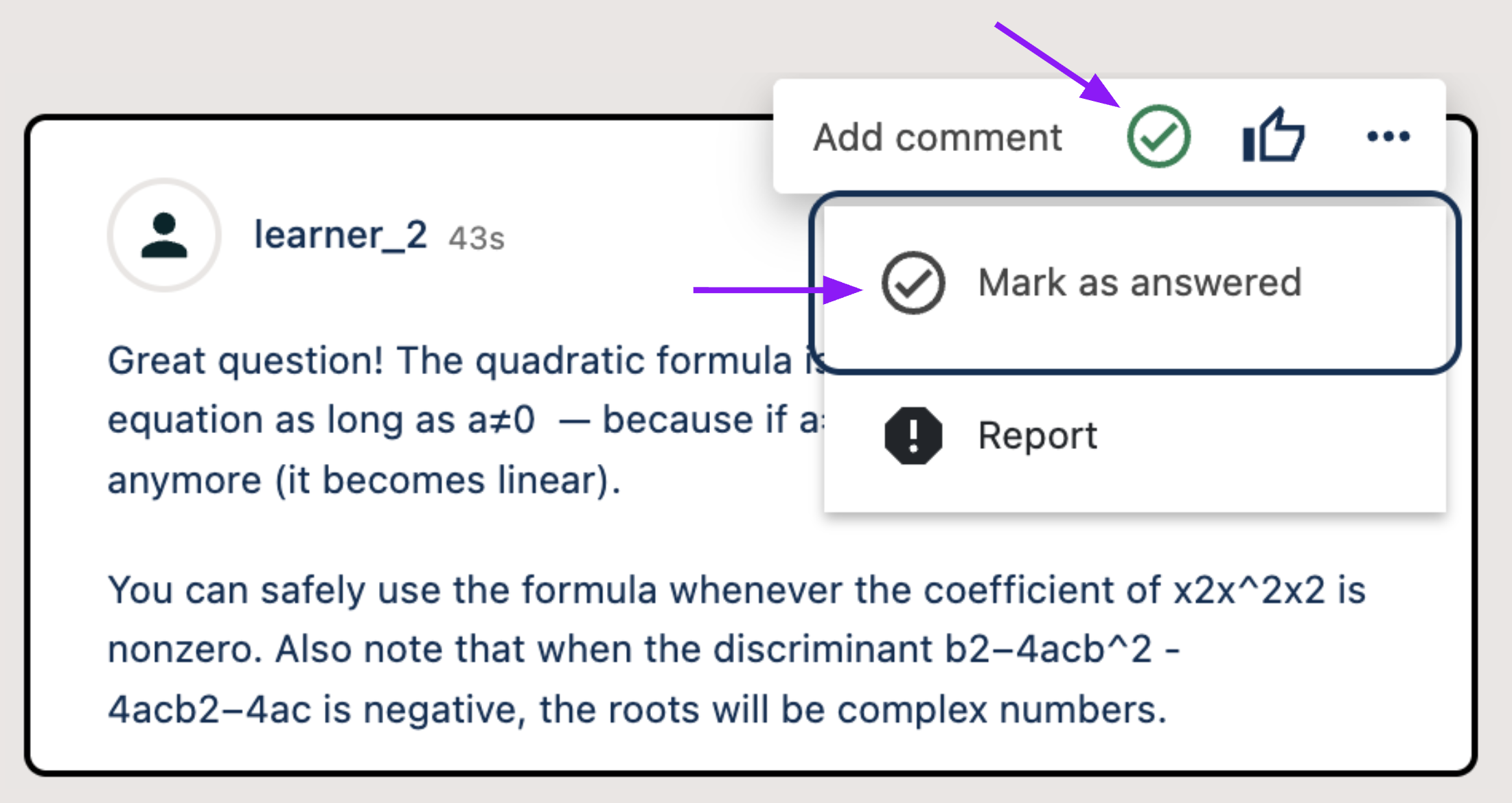
Use the options menu to mark a response as answer on a question post you authored.#
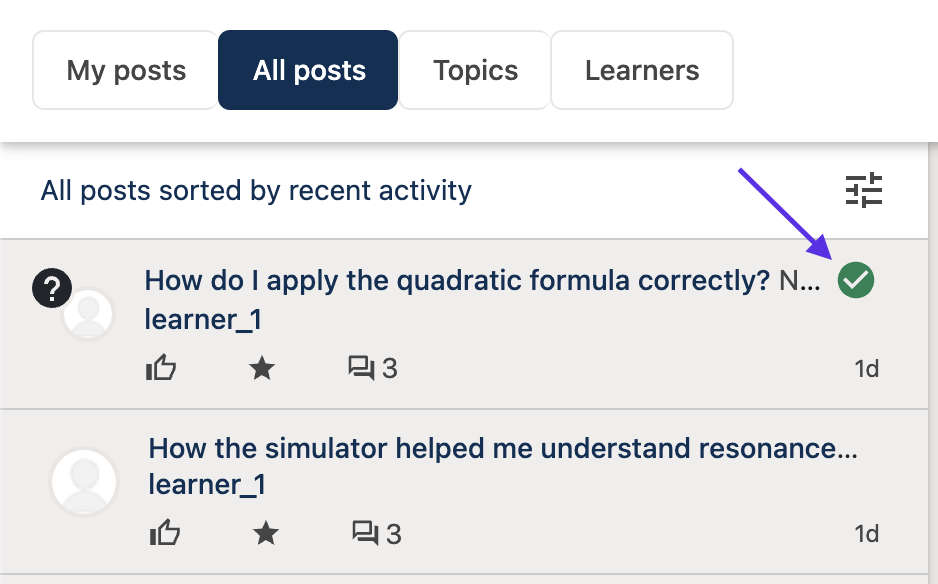
Question posts that have been answered have a check mark in the posts list.#
Note
You will receive a notification if your response is endorsed or marked as the answer, or if a response on your post is endorsed or marked as the answer. See Staying Updated with Notifications.
Liking posts and responses#
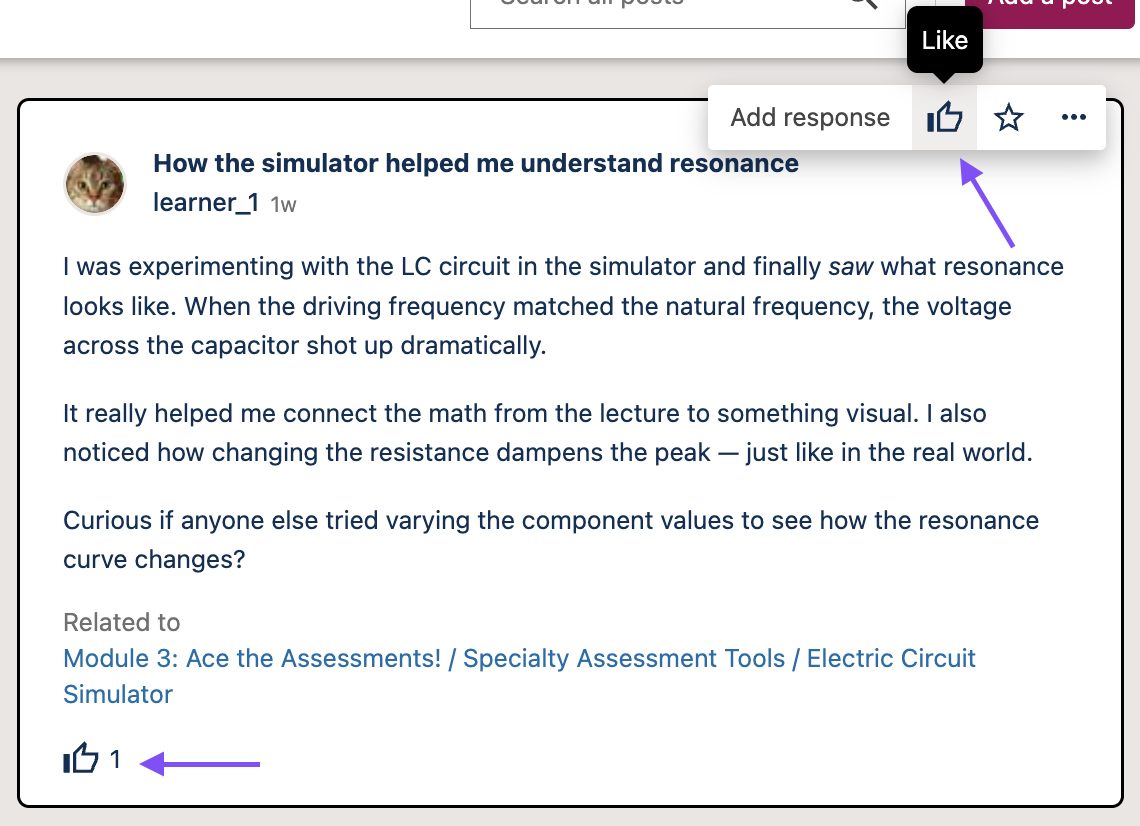
Post or response can be liked using the actions menu.#
You can click the Like button on any post or response to show appreciation for helpful or well-written contributions. Posts with more likes appear higher in lists sorted by Most likes. Count of likes can been seen below the response or comment.
Reporting inappropriate content#

Use the options menu to report content that you find inappropriate or spam.#
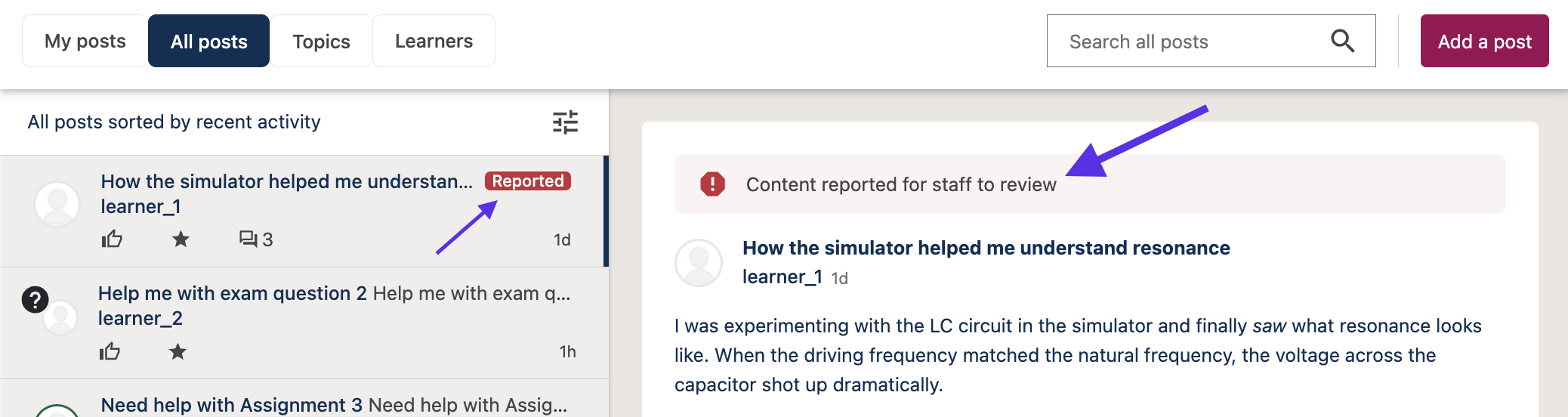
Content that you report will show an indicator on top of the post and in the list.#
If you see a post, response, or comment that is inappropriate, off-topic, or spam, report it for review. Open the Actions menu on that item and select Report.
Moderators review reported content and may edit, delete, or close it to keep discussions safe and respectful.
Moderation actions#
Moderators help maintain a respectful learning environment. They can close posts to prevent new replies, or edit or delete content.
When a post is closed#
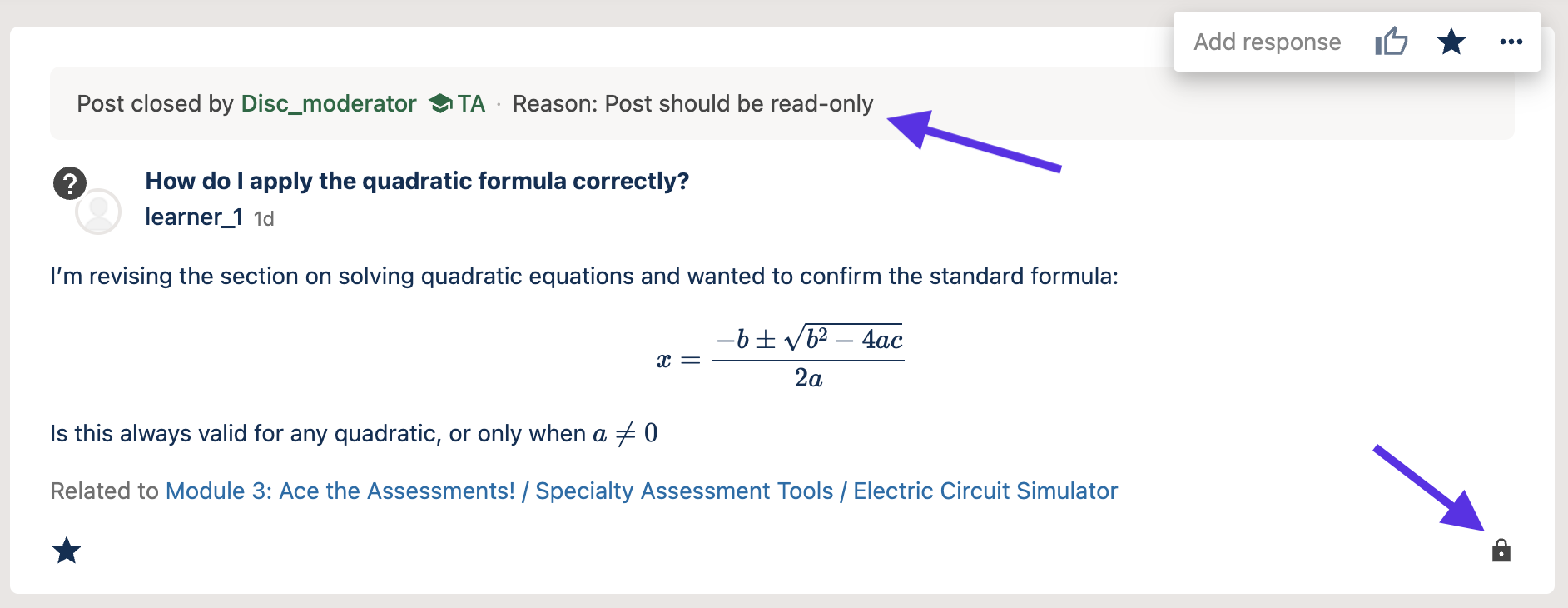
Closed post will show a lock icon on the bottom right and a banner on top with information on why it was closed.#
A closed post shows a lock icon at the bottom right corner. If you are the author, a banner appears at the top explaining why the post was closed.
Moderators might close posts for reasons that include: they are off-topic, duplicates, resolved, or related to graded assignments or exams. Closed posts can be reopened by moderators if needed.
A closed post shows a lock icon at the bottom right corner. If you are the author, a banner appears at the top explaining why the post was closed.
Moderators may close posts that are off-topic, duplicates, resolved, or related to graded assignments or exams. Closed posts can be reopened by moderators if needed.
When a post is edited#
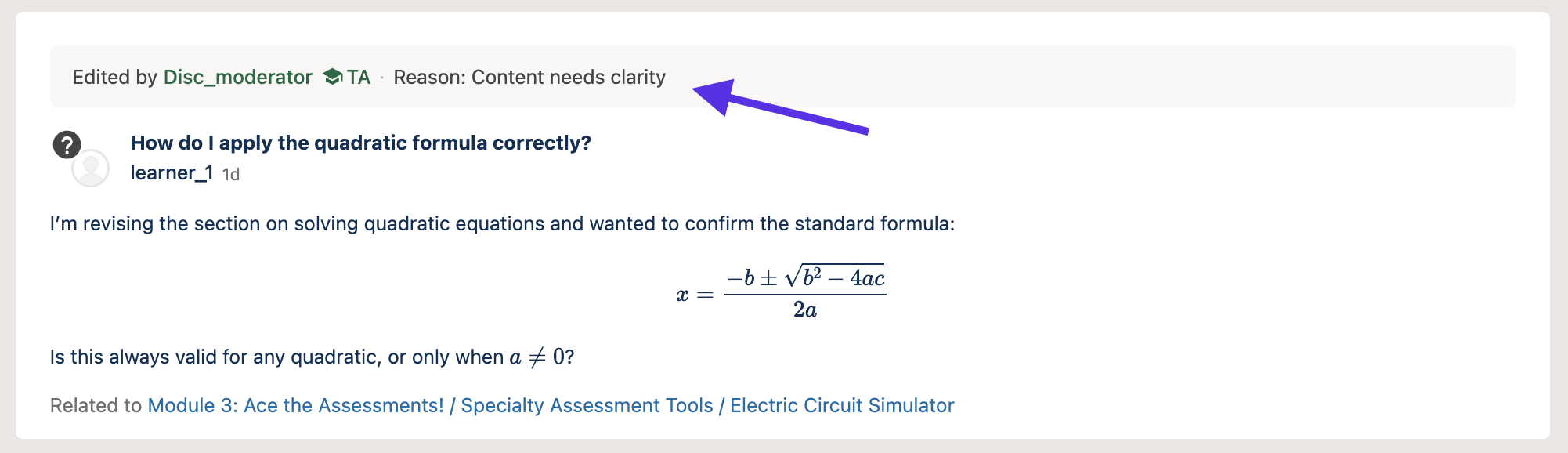
Post edited by a moderator will show a banner on top with reason for edit.#
Moderators can edit posts, responses, and comments to fix spelling, remove personal or identifying details, or delete harmful or inappropriate content.
If you are the post’s author, a banner appears at the top explaining why your post was edited.
Maintenance chart
Review Date |
Working Group Reviewer |
Release |
Test situation |
3rd Dec, 2025 |
Aamir Ayub |
Ulmo |
Pass |