
Create and Edit New Subsections and Sections#
Libraries contain the same rich editing interfaces that are available in courses. Subsections and sections can be edited and updated at any time.
Note
Users must have Library Author, Library Contributor, or Library Admin permissions on a library to edit content. See Manage Library User Access for more details.
Create a New Subsection or Section#
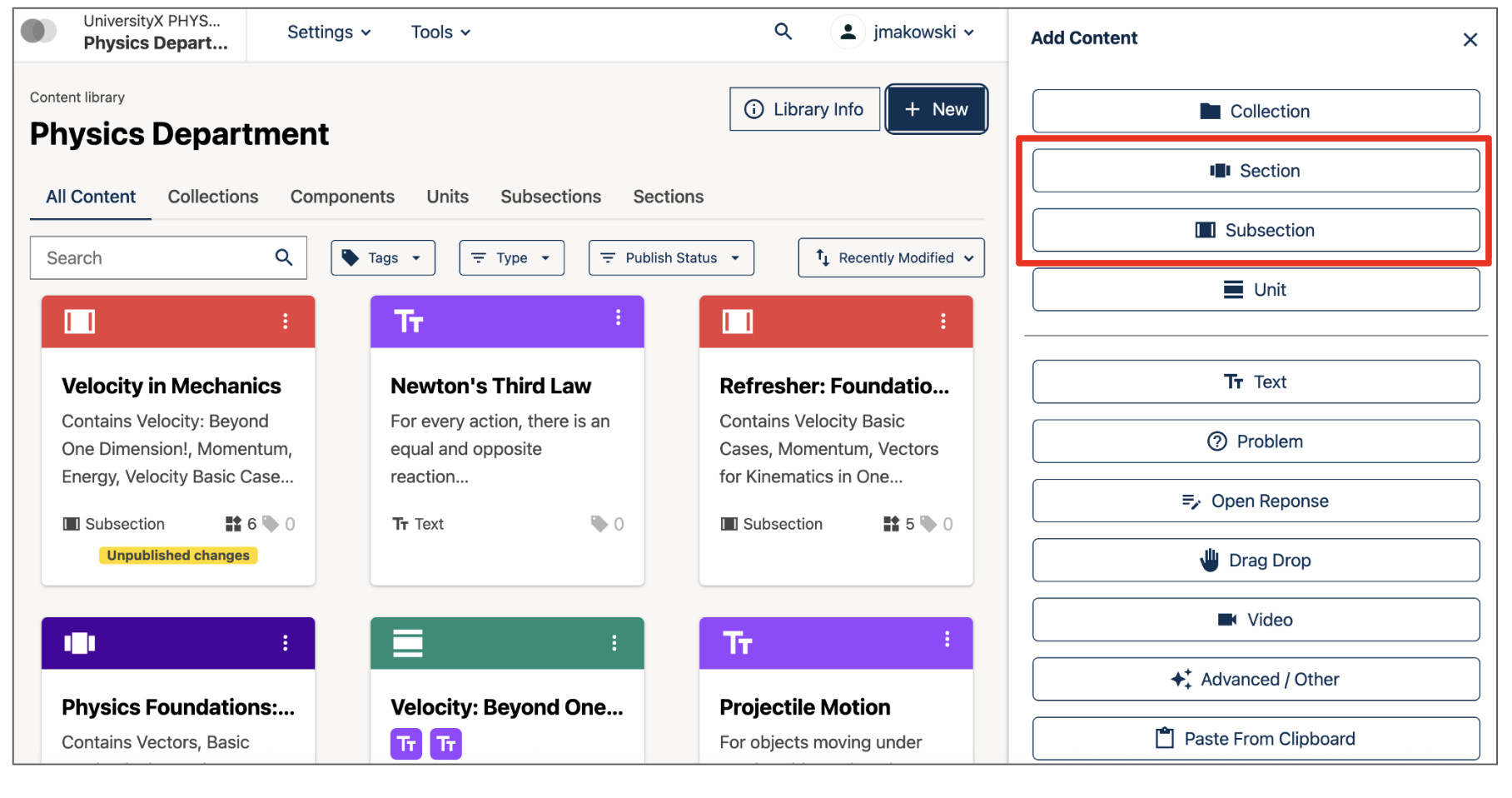
Click on the New button at the top of the page. The Add Content sidebar will open.
Click on either the Subsection or Section button from the Add Content sidebar.
Add a title to your new Subsection or Section, and click Create. The new empty page will open.
Add New Content to a Subsection or Section#
From the new subsection or new section page, click the + Add Unit button (for subsections) or the + Add Subsection button (for sections) at the top of the page. The Add Content sidebar will open.

The Add Unit button appears within a Library Subsection#
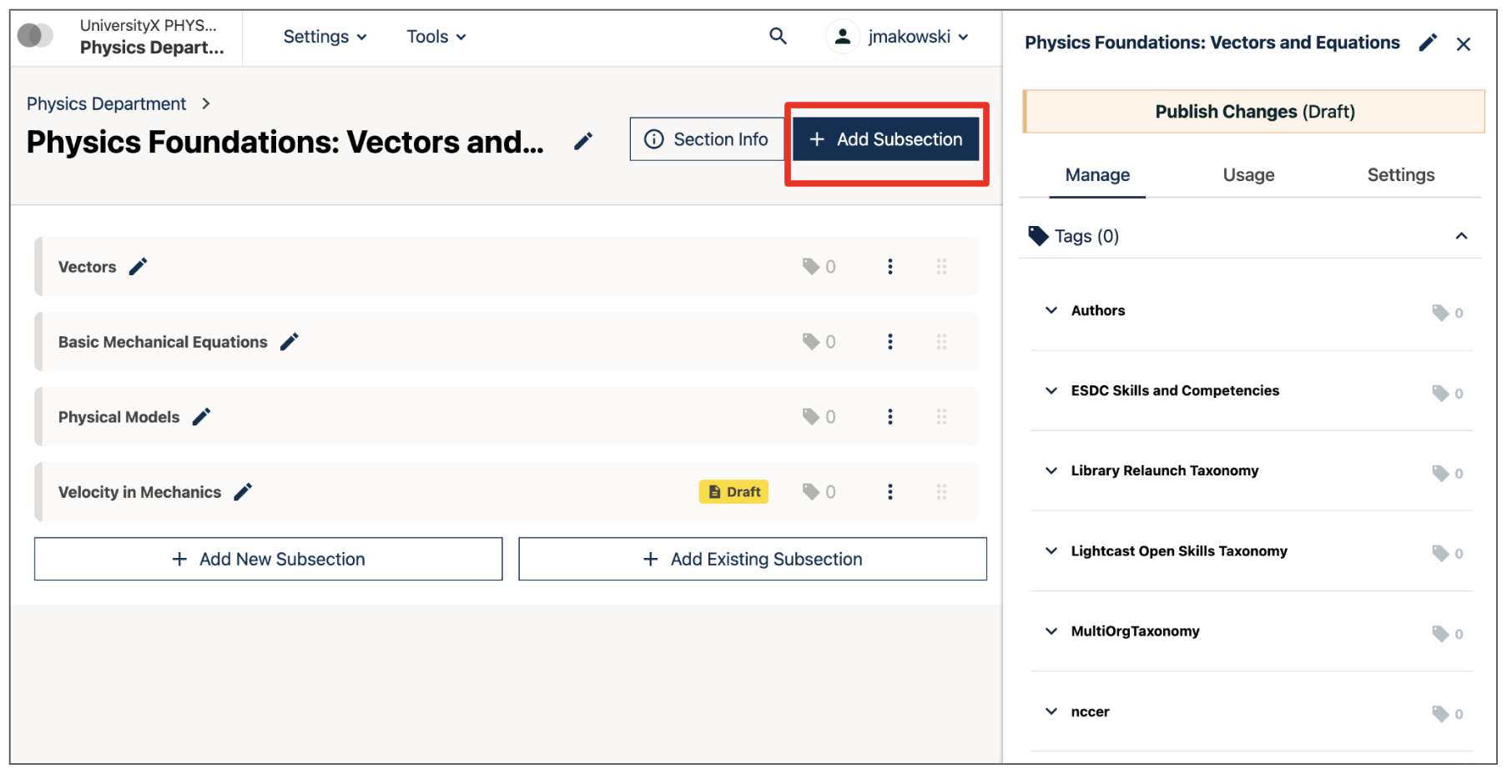
The Add Subsection button appears within a Library Section#
Choose existing content, or create new content, to populate the subsections/sections.
Maintenance chart
Review Date |
Working Group Reviewer |
Release |
Test situation |
2025-12-11 |
Product WG |
Ulmo |
Pass |